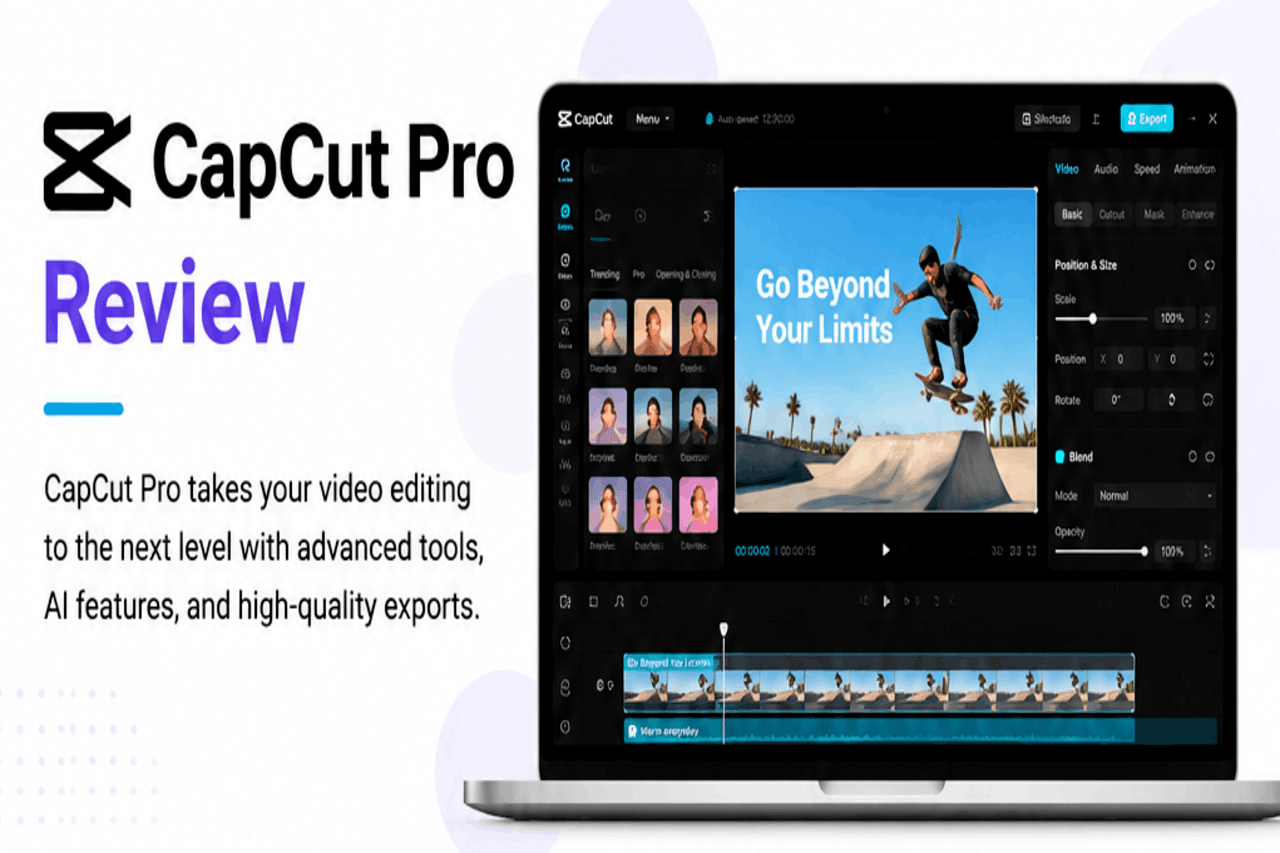
CapCut Pro is a paid upgrade to the free CapCut video editor, adding advanced tools, an expanded asset library, and AI features like background removal and auto-captions. It’s worth it for content creators and small businesses who edit often. Casual users may be fine with the free version.
CapCut started as a mobile editing app and grew into one of the most-used video editors for short-form content. You’ve probably seen videos made with it on TikTok, Instagram, and YouTube—even if you didn’t know it. The free version covers a lot of ground. But CapCut Pro promises more power, more assets, and faster workflows.
So the real question is whether the Pro tier earns its monthly fee. That depends on how often you edit, what kind of videos you make, and how much time you want to save.
This review breaks down CapCut Pro’s key features, pricing, performance, and the trade-offs. By the end, you’ll know if it fits your needs—or if the free version already does the job.
What is CapCut Pro?
CapCut Pro is the paid subscription tier of CapCut, a video editor owned by ByteDance (the company behind TikTok). It runs on mobile and desktop, and in a web browser, so you can start a project on your phone and finish it on your computer.
The free version handles most basic and intermediate editing. CapCut Pro layers on premium effects, a larger media library, exclusive AI tools, and a watermark-free export. That means you get the same familiar interface, with extra firepower behind the paywall.
CapCut sits in a crowded market alongside tools like Adobe Premiere Pro, Filmora, and DaVinci Resolve. Its main draw? It balances ease of use with features that once required desktop-only software.
Key features of CapCut Pro
CapCut Pro bundles its upgrades into a few main categories. Here’s what you actually get for your money.
Advanced editing tools
CapCut Pro gives you serious control over your edits. You get multi-track editing, so you can layer video, audio, text, and overlays on a single timeline. That’s useful when you want to splice an overlay clip on top of your main footage.
Keyframe animation lets you create smooth movement and transitions. You can animate position, scale, opacity, and more across your clips. On a desktop, adding keyframes is straightforward once you find the keyframe icon on the toolbar.
Color correction rounds out the toolkit. You can adjust brightness, contrast, saturation and apply color grading to set a mood. For creators chasing a specific look, this matters.
Extensive asset library
A big part of CapCut Pro’s value is its content library. You get access to a wide range of effects, filters, transitions, royalty-free music, sound effects, and stock video.
The free version includes plenty of assets, too. But many of the trending templates, premium songs, and polished effects sit behind the Pro paywall. That’s where Pro pays off—you spend less time sourcing music or footage from elsewhere.
AI-powered tools
The AI features are where CapCut Pro stands out. These tools cut down repetitive work.
- Auto-captions: CapCut transcribes your audio and adds captions automatically. You can edit the text and style it to match your brand.
- Background removal: Remove or replace the background of a clip without a green screen. The smart cutout isolates your subject cleanly in most cases.
- Smart tools: Features like auto-reframe resize your video for different platforms, so a horizontal clip can become a vertical one without manual cropping.
These tools save real time. For someone editing daily, that adds up fast.
Export options
CapCut Pro supports high-resolution exports up to 4K, with adjustable frame rates and bitrates. You also get watermark-free output, which the free version sometimes adds to premium content.
You can share directly to TikTok, Instagram, and other platforms from inside the app. That keeps your workflow in one place.
How easy is CapCut Pro to use?
CapCut Pro is built for beginners but holds up for advanced users. The interface is clean, with drag-and-drop editing and clearly labeled tools. If you’ve used any mobile editor before, you’ll feel at home within minutes.
That said, the advanced features carry a learning curve. Keyframe animation, color grading, and multi-track layering take time to master. The basics are simple. The depth takes practice.
Where CapCut Pro really helps is workflow speed. Templates let you drop your clips into a pre-made structure and export in minutes. AI tools handle tedious tasks like captioning. Cloud syncing keeps your projects available across devices. For high-volume creators, that efficiency is the main reason to upgrade.
CapCut Pro vs. the free version
The free version of CapCut is genuinely capable. You can edit, add text, use many effects, and export in good quality without paying a cent. For a lot of users, that’s enough.
CapCut Pro adds:
- Premium effects, filters, and transitions
- A larger music and stock video library
- Exclusive AI tools and higher usage limits
- 4K export and watermark-free output
- More cloud storage
So who should upgrade? If you edit occasionally for fun, the free version likely covers you. If you publish often, rely on trending templates, or need clean exports for clients, the Pro features start to justify the cost. The more you edit, the more value you get.
Performance and device compatibility
CapCut runs on iOS, Android, Windows, and macOS, plus a browser-based version. This cross-platform support is one of its strengths.
On mobile, performance is smooth for most editing tasks, though heavy projects with many layers can slow older phones. On a desktop, you get more screen space and processing power, which makes complex edits and 4K work more comfortable.
System requirements are modest by professional standards. You don’t need a high-end machine to run CapCut, but a faster device handles AI tools and high-resolution exports better. If you plan to edit 4K regularly, a capable computer is worth having.
CapCut Pro pricing and subscription
CapCut Pro uses a subscription model, with monthly and annual plans. The annual plan lowers the effective monthly cost, so frequent users save by paying yearly. Pricing can vary by region and platform, so check the current rates in the app before subscribing.
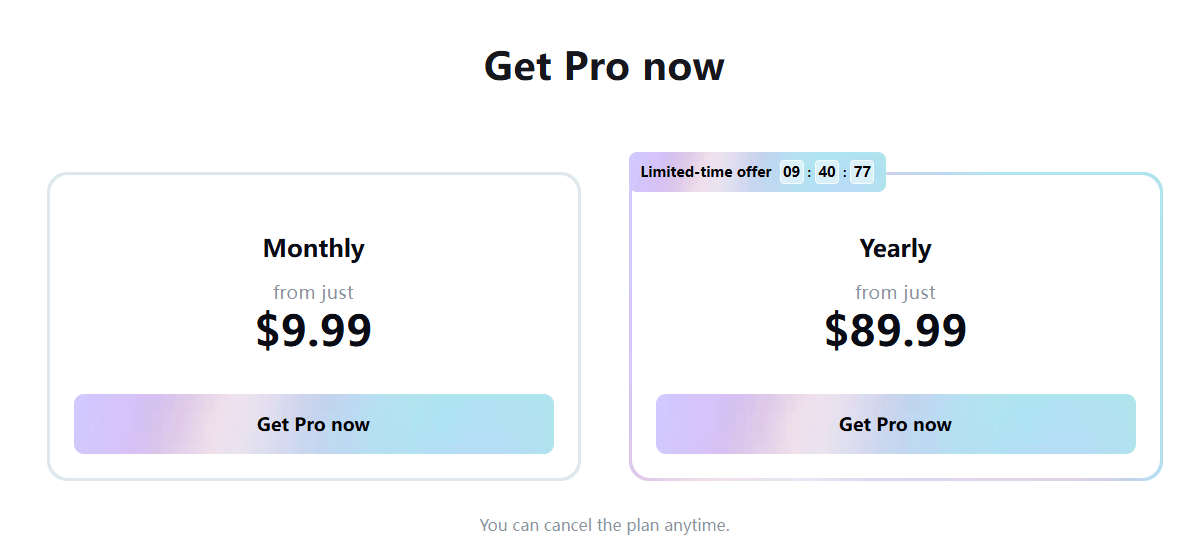
Is it worth the money? For daily creators and small businesses, the time saved on captions, asset sourcing, and exports often outweighs the fee. For casual users who edit a few times a month, the free version may be the smarter pick.
If you want to cancel, you can manage your subscription through your app store account (Apple or Google) or your CapCut account settings on desktop. Turn off auto-renewal before your billing date to avoid the next charge.
Pros and cons of CapCut Pro
Here’s the honest rundown.
Pros:
- Powerful editing tools that rival desktop software
- Time-saving AI features like auto-captions and background removal
- Large library of premium effects, music, and stock footage
- Beginner-friendly interface with room to grow
- Cross-platform support with cloud syncing
- 4K, watermark-free exports
Cons:
- Advanced features have a learning curve
- Subscription cost adds up over time
- Some of the best assets are locked behind the paywall
- Heavy projects can lag on older devices
- Pricing and availability vary by region
Who should use CapCut Pro?
CapCut Pro fits several types of users. Here’s where it makes the most sense.
- Content creators: YouTubers, TikTokers, and Instagram creators benefit most. Trending templates, AI captions, and quick exports match the fast pace of short-form content.
- Small businesses: For marketing clips, product demos, and social ads, CapCut Pro offers a low-cost way to make polished videos without hiring an editor.
- Casual users: For birthday montages, travel recaps, or personal projects, the free version usually does enough. You’d only need Pro for the occasional premium effect.
Match the tool to your output. Heavy use favors Pro. Light use favors free.
Tips and tricks for getting the most out of CapCut Pro
A few habits will help you work faster and smarter:
- Start with templates. They cut editing time dramatically. Find a trending template, drop in your clips, and adjust from there.
- Master keyframes. Once you understand keyframe animation, your videos look far more professional. Practice on a short clip first.
- Use auto-captions, then edit. The AI transcription saves time, but always review the text for errors before exporting.
- Learn the shortcuts. On a desktop, keyboard shortcuts speed up editing. Selecting an entire track, splitting clips, and adding text all go faster once you know them.
- Tap into the community. CapCut has a large user base, and platforms like YouTube and TikTok are full of free tutorials. When you get stuck—say, you can’t find the fade option or want inverted text—a quick search usually solves it.
Final verdict on CapCut Pro
CapCut Pro is one of the strongest video editors for short-form content, and it earns its place near the top of the market. The combination of an easy interface, deep editing tools, and genuinely useful AI features is hard to beat at this price.
But the upgrade isn’t for everyone. If you edit casually, the free version already gives you a lot. If you create often—for an audience or a business—the Pro features save time and lift your production quality enough to justify the cost.
Our recommendation: try the free version first. Push it to its limits. When you start hitting paywalls on templates, effects, or AI tools you actually need, that’s your signal to upgrade. CapCut keeps adding features, so the value proposition is likely to keep improving.
Frequently asked questions
Is CapCut Pro worth it?
CapCut Pro is worth it if you edit videos often, especially for an audience or a business. The AI tools, premium assets, and watermark-free exports save time and improve quality. If you only edit occasionally, the free version is likely enough.
What are the benefits of CapCut Pro?
CapCut Pro gives you advanced editing tools, a larger library of effects and music, exclusive AI features (auto-captions, background removal, smart cutouts), 4K watermark-free exports, more cloud storage, and access to trending premium templates.
How does CapCut Pro compare to Filmora?
Both are user-friendly editors. CapCut Pro leans toward short-form, social-first content with strong AI tools and a generous free tier. Filmora targets longer-form desktop projects with a more traditional editing layout. Choose CapCut Pro if you focus on social video; choose Filmora if you mainly edit longer videos on a desktop.
Which is the No. 1 editing app?
There’s no single best app for everyone. CapCut ranks among the most popular for short-form and mobile editing thanks to its ease of use and AI tools. For professional desktop work, editors like Adobe Premiere Pro and DaVinci Resolve are common picks. The right choice depends on your content and skill level.
How to remove CapCut watermark?
CapCut Pro exports without a watermark by default. On the free version, check the export settings and remove any added ending clip or watermark element before exporting. Premium templates may still apply a watermark unless you have Pro.
Why is CapCut not working on my device?
It is incredibly frustrating when an app freezes right when you are in the zone. If you notice your project lagging, it usually means your phone or PC has run out of temporary memory. Try closing all your other open apps, clearing the cache inside the app settings, or restarting your device to fix the glitch.
Is CapCut getting banned with TikTok?
Many creators are worried about the future of their favorite editing tools due to recent legal debates. Since both platforms share the same parent company, ByteDance, people naturally assume they will face the same fate. However, the app remains fully available in app stores for desktop and mobile downloads, so you can keep editing your projects without panic.
When is CapCut coming back if it is restricted?
If you are living in a region where the app was blocked or removed from local app stores, there is rarely a set return date. These decisions depend entirely on local government privacy regulations and corporate negotiations. If you need to access your projects during a local outage, you might need to use a virtual private network to connect.
What country allows all CapCut templates to be used without limits?
Due to local copyright laws and music licensing agreements, certain video layouts disappear depending on where you live. The United States, the United Kingdom, and many nations across Southeast Asia generally enjoy unrestricted access to the full asset library. If you want to unlock every option, switching your digital location to one of these regions usually does the trick.
How to remove CapCut watermark from your finished videos?
You do not want a giant brand logo ruining the clean look of your final edit. If you are on the free plan, simply scroll to the very end of your timeline, click on the default closing clip, and hit the delete button before exporting. If you use a premium template, choosing the “Export without watermark” option will automatically send it straight to your camera roll perfectly clean.
How to cancel CapCut subscription plans safely?
If you want to stop your monthly recurring payments, you must cancel through the exact store where you bought it. If you signed up on an iPhone, open your Apple Settings, click your name, tap Subscriptions, and hit cancel. For Android users, open the Google Play Store, tap your profile icon, navigate to Payments & Subscriptions, and end the plan there.
How to select entire track in CapCut with one move?
Manually clicking fifty tiny video clips to move them down the timeline is a massive waste of time. On the desktop version, you can simply click and drag a large box over all your clips to highlight them. Alternatively, you can use the track selection tool shortcut to grab everything on a specific layer and slide it over together.
How to add keyframes in CapCut PC for custom movement?
Keyframes are the secret to creating custom animations, smooth zooms, and panning shots. To use them on your computer, click on your video clip and look at the top-right video editing panel. Click the small diamond icon next to “Position” or “Scale” to drop your first point, move down your timeline, change the video size or position, and a second diamond will appear automatically.
How to do text animations CapCut PC effortlessly?
Adding motion to your words helps keep your viewers hooked from start to finish. Type out your words, look at the right-hand text menu, and click on the “Animation” tab. From there, you can choose between “In” motions for entries, “Out” motions for exits, or “Loop” animations to keep the text bouncing or shaking the entire time it is on screen.
Can’t find fade in CapCut menus anymore?
If you want your video to slowly fade from black, the option is hiding inside the animation panels. Click your video clip, tap the “Animation” button on your menu toolbar, and look under the “In” category. You will see the “Fade In” effect right at the front of the list, allowing you to adjust the duration slider to make the transition as slow as you like.
How to make inverted text in CapCut for a stylized look?
Creating a cutout text effect where a video plays inside your words looks incredibly professional. First, type your text in bold white letters over a solid black background and export that clip as a single video file. Import that new text video back into your project, place it on top of your main footage, and change the blend mode setting to “Multiply” or “Darken” to invert the colors.
How to add music to CapCut projects quickly?
Great videos need a solid soundtrack to connect with people emotionally. You can click on the “Audio” tab in the main menu to browse thousands of trending background tracks directly inside the app library. If you want to use a specific sound from a video you saved online, use the “Extract Audio” tool to peel the sound file right off that clip.
How to change pitch in CapCut without ruining the audio?
If you want to create a funny cartoon voice or a deep, dramatic tone, adjusting the sound frequency is simple. Click on your audio track, look at the right-hand setting panel, and find the speed controls. Toggle the “Voice Tone Change” or “Keep Pitch” switch to alter the speed of the audio while keeping the vocal clarity sounding completely natural.
How to turn a video on CapCut to fix crooked shots?
If you recorded a clip upside down or sideways on your phone, you can rotate it back to normal in two seconds. Select the crooked video clip on your timeline and look at the main transformation menu. Click the “Rotate” button repeatedly to spin the video ninety degrees at a time until your horizon line looks perfectly straight.
Where can I find a clean CapCut icon PNG for my graphics?
If you are building a custom thumbnail or a marketing graphic, you need a high-quality logo image with a transparent background. Avoid saving messy screenshots from standard search pages. Instead, visit official asset libraries or use a digital design app like Canva to export a verified, clean logo file that drops seamlessly onto your artwork.
How to post on CapCut to share your custom creations?
If you want to become a creator and share your layouts with the world, you must apply through their official template program. Open the app, go to the “Template” tab at the bottom of your screen, and click the banner at the top that invites creators to join. Once the platform team approves your application, a new “Post as Template” button will appear every time you export an edit.
Where do I find a CapCut template new trend to go viral?
The fastest way to grow your social media following is to ride the wave of a popular layout early. Open the app and tap the dedicated “Template” tab to see what the algorithm is pushing to the top today. You can also spot these trends by scrolling through your TikTok feed and looking for the little cap icon link right above the creator’s username.
How to make a custom CapCut template slow-motion video?
Creating a dramatic, velvety smooth speed drop requires clean frame transitions. Cut the specific section of the clip you want to change, open the “Speed” menu, and tap the “Curve” option for a natural deceleration. Make sure you check the box for “Better Quality Smooth Slow-Mo” so the software generates extra digital frames to prevent choppy playback.
What is the dark triad template CapCut trend?
This specific editing style uses dark filters, heavy bass music, and rapid text cuts to highlight complex fictional characters or dramatic transformations. To join this specific viral trend, simply type the name into the main template search bar. Find a high rating layout that matches your theme, click “Use Template,” and drop in your own photos to match the beat automatically.
Are there other great editing apps like CapCut available?
If the app is acting up or you simply want to try a different creative interface, you have plenty of amazing alternatives. CapCut is fantastic for rapid social media clips, but you can also download CapCut Pro or apps like CapCut Standard to unlock different workflows. For quick mobile edits, CapCut Mobile faces stiff competition from apps like CapCut Web, CapCut App, CapCut Online, and CapCut Free platforms like VN Editor or InShot. If you want to step up to heavy desktop work, you can explore CapCut PC or transition into premium software like DaVinci Resolve or Premiere Pro.