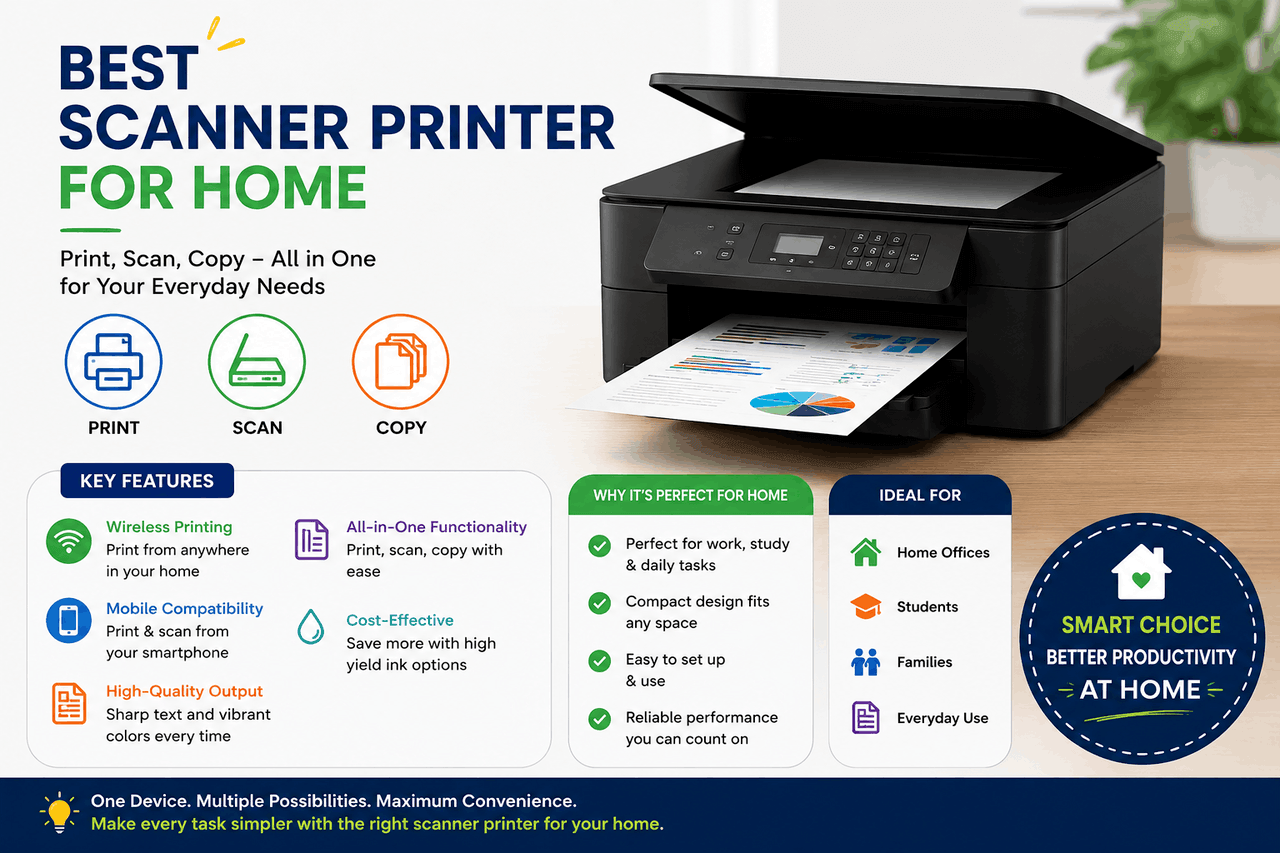
The best scanner printer for most people is an all-in-one inkjet or laser model that balances print quality, scan resolution, and connectivity. For home use, a compact inkjet works well. For offices, a laser AIO handles volume more efficiently. Your best fit depends on how much you print, what you print, and how much you’re willing to spend on ink or toner over time.
A good scanner printer does more than print a page. It copies documents, scans files to your phone or cloud, and — in many cases — sends faxes. For home offices, students, and small businesses alike, a single all-in-one device replaces what used to require three separate machines. That’s a real advantage.
But picking the right one takes some thought. The market ranges from budget inkjet printers under $100 to high-speed laser printers that cost several hundred dollars upfront. The wrong choice can cost you more in ink than the printer itself. The right choice becomes one of the most-used tools in your workspace.
This guide walks you through everything you need to know — from the different types of scanner printers to the top models available today, plus a practical framework for choosing the one that actually fits your needs.
What Is a Scanner Printer, and What Can It Do?
A scanner printer — more commonly called an all-in-one (AIO) printer — combines printing, scanning, copying, and sometimes faxing into one device. You connect it to your computer, phone, or network, and it handles most document tasks from a single footprint.
Modern AIOs have come a long way. Early models were bulky, slow, and finicky. Today’s options support wireless printing from your phone, automatic two-sided scanning, and direct uploads to Google Drive or Dropbox. Some include touchscreen displays that make navigation as straightforward as using a tablet.
The core question isn’t whether to buy one — it’s which type fits your situation.
What Are the Different Types of Scanner Printers?
All-in-One Inkjet Printers
Inkjet AIOs use liquid ink sprayed through microscopic nozzles to produce text and images. They handle colour printing well and tend to cost less upfront than laser models.
That said, inkjet ink cartridges run out faster than laser toner, and the cost per page can be high if you print frequently. They work best for households or small offices with moderate printing needs — especially if colour output matters to you.
Best for: Home users, students, and anyone who occasionally prints photos or colour documents.
All-in-One Laser Printers
Laser AIOs use toner powder and heat to fuse images onto paper. They’re faster, and toner cartridges last much longer than ink — sometimes thousands of pages per cartridge. That significantly lowers the cost per page over time.
The trade-off: laser printers cost more upfront, and colour laser models are considerably more expensive than colour inkjets. Monochrome laser AIOs are the sweet spot for offices that print lots of black-and-white documents.
Best for: Small businesses, home offices with high print volume, anyone printing mostly text.
Photo All-in-One Printers
Photo AIOs are specialised inkjet models built around colour accuracy. They typically use six or more ink cartridges (compared to the standard four) to reproduce finer gradations of colour and tone. Many support borderless printing and are compatible with glossy photo paper.
They’re not ideal as a primary office printer — ink costs are high, and text print speeds are slower. But for photographers or creatives who need quality prints at home, they deliver results that match professional lab output.
Best for: Photographers, designers, and anyone who regularly prints high-quality images.
Portable Scanner Printers
Portable models are compact, lightweight, and often battery-powered. They sacrifice speed and paper capacity for mobility. Some connect via Bluetooth or Wi-Fi, so you don’t need a power outlet.
These work well for freelancers, travelling professionals, or anyone who needs to print receipts, contracts, or quick documents outside of a fixed workspace.
Best for: Remote workers, travellers, occasional on-the-go use.
What Key Features Should You Look for in a Scanner Printer?
Print and Scan Resolution (DPI)
Resolution is measured in dots per inch (DPI). For everyday documents, 600 DPI is sufficient. For photos or fine-detail graphics, look for 1200 DPI or higher on the print side. On the scan side, focus on optical resolution (the scanner’s physical capability) rather than interpolated resolution (a software estimate), which is less meaningful.
Print Speed (PPM/IPM)
Pages per minute (PPM) or images per minute (IPM) tells you how fast a printer works. Home users rarely need more than 15 PPM. Office environments benefit from 20–30 PPM, particularly during busy periods.
Connectivity
Most modern AIOs include Wi-Fi, USB, and mobile printing support via Apple AirPrint or manufacturer apps. Ethernet ports are useful in shared office environments where a stable wired connection matters. Cloud printing — sending documents directly from Google Drive, Dropbox, or email — is now standard on mid-range and above models.
Automatic Document Feeder (ADF)
An ADF lets you load a stack of pages and automatically scan or copy them, one by one. Without it, you have to place each page on the flatbed manually. For anyone who regularly scans multi-page documents, an ADF is worth prioritising — ideally a duplex ADF that scans both sides of a page in a single pass.
Duplex Printing and Scanning
Duplex (two-sided) printing saves paper and produces a more professional look. Duplex scanning captures both sides of a document without requiring manual flipping. Not all budget models include both, so check the specs carefully.
Ink/Toner Yield and Cost per Page
The upfront price of a printer tells you less than you might think. What matters more is how much each page costs over time. Manufacturers publish estimated page yields for each cartridge — divide the cartridge price by that yield to get your cost per page. Inkjets often run $0.05–$0.15 per page; laser printers frequently drop below $0.03 per page at volume.
Paper Handling and Size
Standard input trays hold 100–250 sheets. High-volume models go higher. Check whether the printer supports the paper sizes you use — most handle up to legal (8.5″ x 14″), but not all support larger formats. If you print envelopes or card stock, verify compatibility before buying.
The Best Scanner Printers Available Right Now
Best Overall: Canon PIXMA TR8620a
The Canon PIXMA TR8620a covers every core function cleanly. It prints, scans, copies, and faxes, with a 35-sheet ADF, auto-duplex printing, and a 4.3-inch touchscreen. Print quality is sharp for both text and colour, and setup through Canon’s PRINT app is straightforward.
Ink costs are moderate—not the lowest —but Canon’s XL cartridges bring the per-page cost down. It handles letter- and legal-size paper, and its wireless connectivity is reliable.
Pros: Strong all-round performance, intuitive interface, compact footprint
Cons: Ink costs more than some competitors; slower on high-volume jobs
Cons: Ink costs more than some competitors; slower on high-volume jobs
Best for Home Use: HP DeskJet 4155e
The HP DeskJet 4155e keeps things simple. It prints, scans, and copies, connects via Wi-Fi, and supports HP+ for cloud printing and automatic supply delivery. Setup takes minutes, and it’s quiet enough for a living space.
HP’s Instant Ink subscription can significantly reduce the cost per page if you print regularly. The tradeoff is that ink is locked to the subscription model.
Pros: Affordable upfront, easy to set up, compact
Cons: Slower print speeds; no ADF or fax; subscription model for ink
Cons: Slower print speeds; no ADF or fax; subscription model for ink
Best for Small Business: Brother MFC-L2750DW
For offices that print mostly text at volume, the Brother MFC-L2750DW delivers. It’s a monochrome laser AIO with a 50-sheet ADF, auto-duplex printing and scanning, and both Wi-Fi and Ethernet connectivity. Toner yields are high, and Brother’s replacement cartridges are competitively priced.
At around 36 PPM, it moves quickly. The flatbed scanner works well for contracts and reports. It won’t handle colour, but for black-and-white office workloads, it’s one of the better values available.
Pros: Fast, low cost per page, reliable network performance
Cons: Monochrome only; larger footprint than inkjet models
Cons: Monochrome only; larger footprint than inkjet models
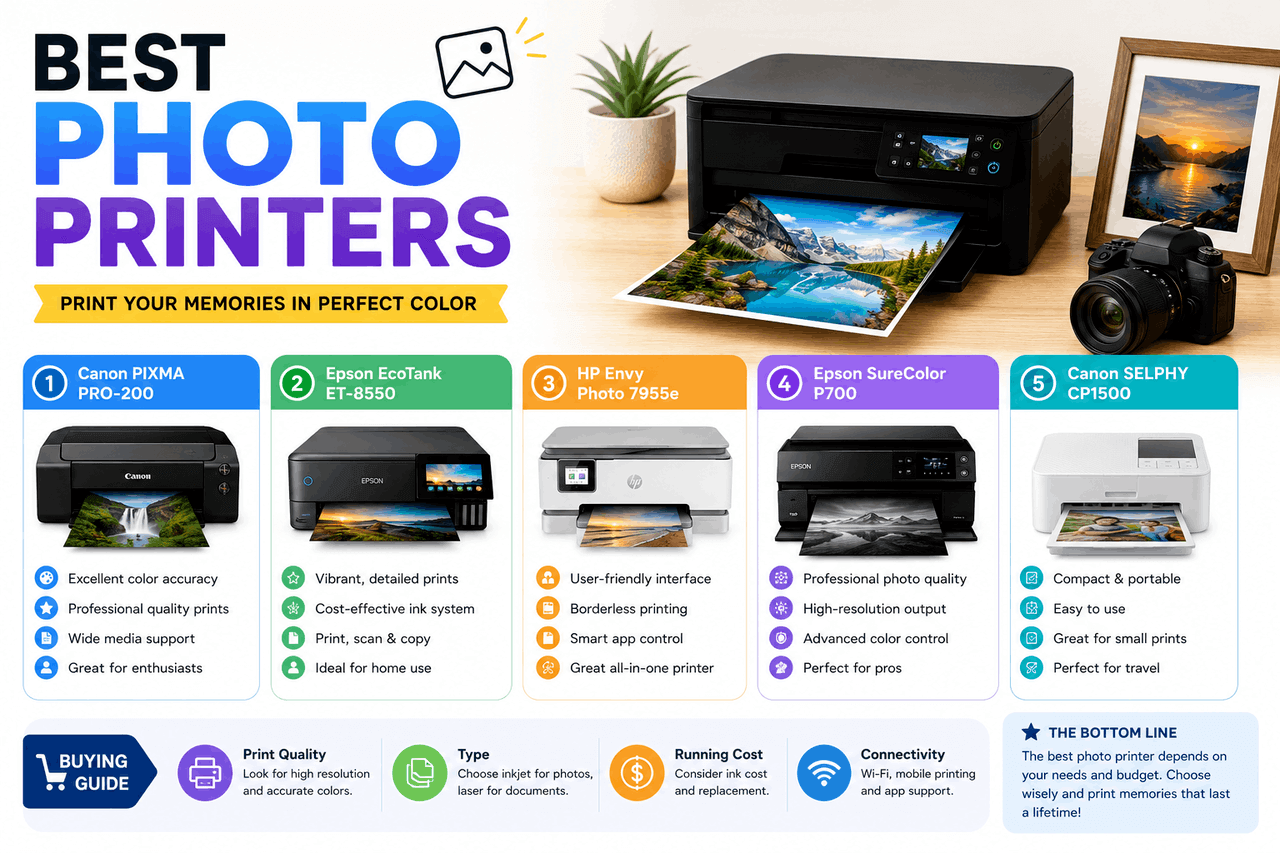
Best for Photo Printing: Epson EcoTank ET-8550
The Epson EcoTank ET-8550 uses a refillable ink tank system with six individual inks, resulting in excellent colour accuracy and very low running costs once the initial fill is complete. It prints up to 13″ x 19″, making it one of the few large-format photo printers suitable for home use.
Scan resolution reaches 1200 DPI optical, which works well for digitising prints or artwork. The upfront cost is higher than for cartridge-based models, but ink refills are cheap — often less than $0.01 per colour page at volume.
Pros: Outstanding photo quality, large format support, very low ink costs, long-term
Cons: High upfront cost; slower than standard AIOs; not ideal for heavy document printing
Cons: High upfront cost; slower than standard AIOs; not ideal for heavy document printing
Best Budget Option: Canon PIXMA MG3620
For light home use, the Canon PIXMA MG3620 covers the basics without unnecessary complexity. It prints and scans wirelessly, supports mobile printing via AirPrint, and fits easily on a desk or shelf.
Print quality is acceptable for everyday documents and occasional colour pages. It doesn’t include an ADF or touchscreen, and its ink costs are higher per page than those of premium models. But as a low-cost entry point for someone who prints a few times a week, it gets the job done.
Pros: Very affordable, compact, easy wireless setup
Cons: No ADF; higher cost per page; slower speeds
Cons: No ADF; higher cost per page; slower speeds
Best High-Volume Option: Brother MFC-J6945DW
The Brother MFC-J6945DW handles high-volume colour printing with a large-format flatbed (up to 11″ x 17″), a 50-sheet ADF, and high-yield ink cartridges that significantly reduce cost per page. It includes dual paper trays with a total capacity of up to 500 sheets, reducing the need for frequent reloading.
Print speeds are solid for an inkjet, and connectivity is comprehensive — Wi-Fi, Ethernet, USB, and NFC. It’s a larger machine, so footprint matters here.
Pros: High paper capacity, wide-format support, low cost per page at volume
Cons: Large physical size; higher upfront cost; slower than laser at peak demand
Cons: Large physical size; higher upfront cost; slower than laser at peak demand
Inkjet vs Laser: Which Technology Is Right for You?
The inkjet-versus-laser decision comes down to three things: what you print, how much you print, and what you care about long-term.
Inkjets handle colour and photos better. They cost less upfront and work well for mixed-use printing at low to moderate volume. However, ink cartridges dry out if left unused for weeks, and replacement costs add up quickly.
Laser printers use toner, which doesn’t dry out and lasts far longer per cartridge. They print text faster and more crisply, and the cost per page drops considerably at volume. Colour laser models are pricier, but monochrome laser AIOs offer some of the best long-term value available.
A simple rule of thumb: if you print more than 200 pages a month or mostly black-and-white text, a laser AIO will likely save you money within a year. If you print less or need good colour output, an inkjet is the more flexible choice.
Cloud Printing and Mobile Connectivity: What You Need to Know
Most current AIOs support Apple AirPrint, Google’s wireless printing protocols, and manufacturer apps such as HP Smart, Canon PRINT, or Brother iPrint&Scan. These let you print directly from your phone, tablet, or laptop without installing drivers.
Cloud printing extends that further — you can send a print job from anywhere, and some models integrate directly with Google Drive, Dropbox, or Microsoft 365. For remote workers or households with multiple devices, this kind of flexibility removes a lot of friction.
The practical limit: cloud printing requires your printer to stay connected to your network. If your router is unreliable or your printer goes into deep sleep mode, jobs can fail silently. Check your printer’s sleep and wake settings if you run into this.
Security Features Worth Knowing About
For home users, printer security rarely ranks high on the list. For offices, it should.
Look for models that support confidential or PIN-release printing — jobs that print only when an authorised user enters a code on the device. This prevents sensitive documents from sitting in the output tray for anyone to see.
User authentication, either via PIN or ID card, limits access to the printer’s functions in a shared environment. Data encryption protects files sent over the network from interception. These features are common on business-grade laser AIOs and rare on home inkjet models.
How to Troubleshoot Common Scanner Printer Problems
- Connectivity issues are usually the first problem people run into. Start by checking that the printer and your device are on the same Wi-Fi network. Restart both the printer and the router. If using a USB connection, try a different port or cable.
- Print quality problems — streaks, faded text, or colour shifts — typically point to low ink or toner, a misaligned print head, or a clogged nozzle. Most printers include a built-in head-cleaning utility accessible from the settings menu.
- Paper jams often result from overloading the input tray, using paper that’s too thick, or worn pickup rollers. Remove jammed paper slowly, in the direction of paper travel, to avoid tearing. Check for small scraps left behind after clearing a jam.
Maintenance Tips to Keep Your Printer Running Well
A few simple habits extend the life of most printers considerably.
Run the print head cleaning cycle every few weeks if you use an inkjet infrequently. Dried ink in the nozzles is one of the most common reasons inkjets stop printing cleanly. Keep ink cartridges in their packaging until you’re ready to install them — exposure to air shortens their shelf life.
For laser printers, periodically wipe the exterior and paper path with a dry cloth to remove toner dust. Avoid using compressed air inside a laser printer — toner particles are fine enough to spread into components and cause damage.
Update printer firmware when prompted. Manufacturers release updates that fix connectivity bugs, improve compatibility, and occasionally add new features. Most modern printers check for updates automatically, but it’s worth confirming this is enabled in your settings.
How to Choose the Right Scanner Printer for Your Situation
Use these questions to quickly narrow your options.
How much do you print per month?
- Fewer than 100 pages: any inkjet AIO works fine.
- 100–500 pages: consider a high-yield inkjet or monochrome laser.
- Over 500 pages: a laser AIO pays for itself through lower per-page costs.
Do you need colour printing?
- Yes, occasionally, a standard inkjet handles this well.
- Yes, frequently and with accuracy: look at a photo inkjet or colour laser.
- No, a monochrome laser is almost always the most cost-effective choice.
Do you scan multi-page documents regularly?
If yes, prioritise a model with a duplex ADF. Without one, scanning a 10-page contract means placing each page individually.
If yes, prioritise a model with a duplex ADF. Without one, scanning a 10-page contract means placing each page individually.
What’s your real budget?
Account for ongoing ink or toner costs, not just the purchase price. A $60 printer with $30 cartridges that last 150 pages costs more per page than a $150 printer with $20 cartridges that last 1,000 pages.
Frequently Asked Questions
What is the best all-in-one scanner printer for home?
The HP DeskJet 4155e and Canon PIXMA TR8620a are both strong choices for home use. The DeskJet 4155e is more affordable upfront and works well for light printing. The PIXMA TR8620a includes an ADF and fax capability, making it more versatile for households with more varied needs.
Is inkjet or laser better for a home office?
It depends on your volume. Inkjets work well for occasional printing and colour output. Laser printers cost more upfront but are cheaper per page at higher volumes. For a home office printing more than 200 pages a month, a laser AIO usually offers better value over time.
What does DPI mean on a scanner printer, and how much do I need?
DPI stands for dots per inch — it measures print or scan resolution. For standard documents and text, 600 DPI is sufficient. For scanning photos or detailed artwork, look for an optical resolution of 1200 DPI or higher.
Can I print from my phone with an all-in-one printer?
Yes. Most current AIOs support Apple AirPrint, Google’s wireless printing protocols, and manufacturer apps for iOS and Android. You can print directly from your phone as long as it’s on the same Wi-Fi network as the printer.
What is an automatic document feeder (ADF), and do I need one?
An ADF is a mechanism that automatically feeds multiple pages through the scanner. Without one, you load each page manually on the flatbed. If you regularly scan multi-page documents — contracts, reports, receipts — an ADF can save you significant time.
How do I reduce my printer’s ink or toner costs?
Buy high-yield cartridges, which cost more per unit but far less per page. For inkjets, consider a subscription service like HP Instant Ink. For heavy users, EcoTank or MegaTank models with refillable ink reservoirs offer some of the lowest per-page costs available.
Are expensive scanner printers worth it?
Often, yes — but the value depends on how you use it. A $300 laser AIO that costs $0.02 per page will cost less than a $100 inkjet at $0.10 per page if you print regularly. Calculate your expected monthly print volume and compare the total cost of ownership, not just the upfront price.
Making the Right Call
No single scanner printer is right for everyone. The best one is the one that fits how you actually work — your print volume, your document types, your budget, and your patience for ongoing ink costs.
Start with the basics: how much you print, whether you need colour, and whether multi-page scanning matters to you. Those three answers narrow the field considerably. From there, choose a model with connectivity and features that match your workflow, and factor in long-term running costs before committing.
The printers reviewed here represent strong choices across different categories. Any one of them, matched to the right use case, will handle the demands of a modern home or small office with little friction.