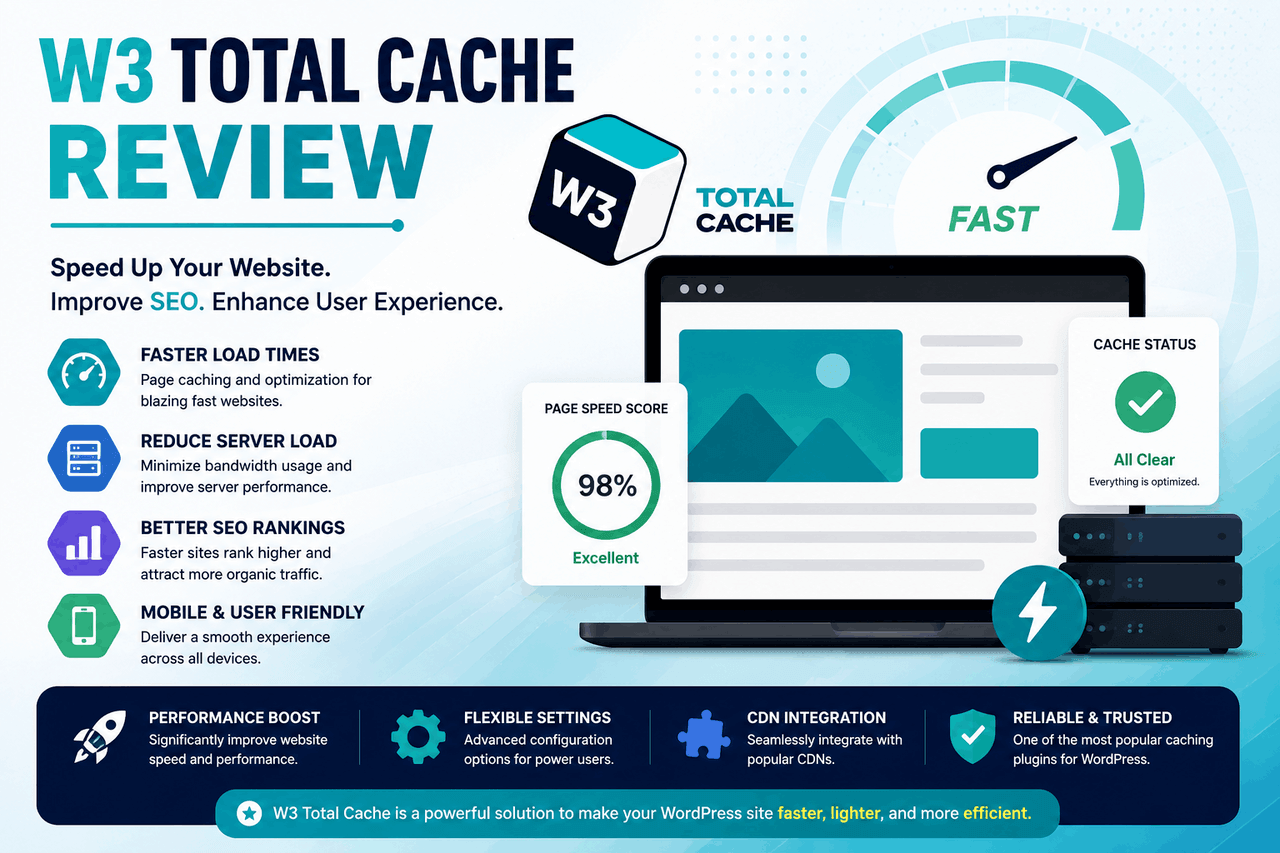
W3 Total Cache is a free WordPress caching plugin that speeds up your site by storing static versions of your pages, reducing server load, and integrating with CDNs. It’s one of the most powerful options available, but its complexity makes it better suited to intermediate and advanced users than to WordPress beginners.
If your WordPress site loads slowly, you’re losing visitors. Research from Google consistently shows that as page load time increases from 1 to 3 seconds, the probability of a user bouncing increases by 32%. Speed isn’t just a technical metric — it directly affects your traffic, your rankings, and your revenue.
W3 Total Cache is one of the most widely used WordPress performance plugins, with over 1 million active installations. It promises to improve your site’s speed through caching, CDN integration, and file minification — but it also comes with a steep learning curve and settings that can break your site if configured incorrectly.
This review covers everything you need to know: what W3 Total Cache does, how to set it up, how it performs, where it falls short, and how it stacks up against alternatives. By the end, you’ll know whether it’s the right tool for your WordPress site.
What is W3 Total Cache and why does it matter?
W3 Total Cache is a free WordPress caching plugin developed by BoldGrid. Caching works by saving a static HTML version of your page so that the server doesn’t need to rebuild it from scratch every time a visitor arrives. That means faster load times and lower server resource usage — two things that directly affect both user experience and SEO.
Google uses page speed as a ranking factor for both desktop and mobile search. Slow sites rank lower. They also convert worse: a one-second delay in page load time can reduce conversions by 7%, according to research from Akamai. W3 Total Cache addresses this problem at multiple levels, from how your pages are served to how your files are delivered.
The plugin is free to use, with a paid Pro version that adds additional CDN support and extension features. For most WordPress sites, the free version is sufficient.
Key Features of W3 Total Cache
W3 Total Cache offers a broad set of performance features. Here’s what each one does and why it matters.
Page Caching
Page caching stores a complete HTML copy of each page on your site. When a visitor lands on a cached page, your server skips the process of querying the database and rendering PHP — it simply serves the stored HTML file. This is the most impactful single feature for reducing load times, particularly on shared hosting.
Object and Database Caching
Object caching stores the results of database queries in memory, so repeated queries — like fetching your site’s navigation menu — don’t hit the database every time. Database caching works similarly but stores query results at the database level. Together, they reduce the computational load on your server, which matters most for dynamic sites with lots of user activity or complex queries.
CDN Integration
W3 Total Cache integrates with a wide range of content delivery networks, from Amazon CloudFront to Cloudflare to MaxCDN (now StackPath). A CDN stores copies of your static files — images, CSS, JavaScript — on servers around the world. Visitors load those files from the server closest to them, which cuts latency and speeds up page load times globally. This feature alone can make a significant difference for sites with international audiences.
Minification
Minification removes unnecessary characters — whitespace, comments, line breaks — from your HTML, CSS, and JavaScript files. Smaller files load faster. W3 Total Cache lets you minify these files individually or in combination. That said, minification is also where most configuration errors occur, so it’s worth testing carefully after enabling it.
Browser Caching
Browser caching tells a visitor’s browser to store certain files locally so they don’t need to be re-downloaded on repeat visits. This is particularly effective for returning visitors and can meaningfully improve perceived load times.
How to Install and Configure W3 Total Cache for Best Performance
Step 1: Install the Plugin
From your WordPress dashboard, go to Plugins → Add New, search for “W3 Total Cache,” and click Install Now, then Activate.
Step 2: Run the Setup Wizard
After activation, W3 Total Cache includes a setup wizard (introduced in recent versions) that walks you through basic configuration. This is the best starting point for new users. It will help you enable page caching and connect a CDN if you have one.
Step 3: Enable Page Caching
Go to Performance → General Settings and enable Page Cache. For most shared hosting environments, set the delivery method to Disk: Enhanced. If you’re on a VPS or dedicated server with Memcached or Redis available, those options offer faster performance.
Step 4: Configure Minification
Under Minify, enable the feature and set it to Auto mode first. This lets the plugin handle file grouping automatically. If you notice visual issues or JavaScript errors after enabling minification, switch to manual mode and disable minification for specific files.
Step 5: Set Up Browser Caching
Enable Browser Cache under General Settings. The default settings work well for most sites. This tells browsers to cache static assets like images and stylesheets for a set period.
Step 6: Connect Your CDN (Optional)
If you use a CDN, navigate to Performance → CDN and enter your CDN credentials. W3 Total Cache supports most major providers. After connecting, test your site to confirm static files are being served from CDN URLs.
Step 7: Test Your Configuration
Use tools like Google PageSpeed Insights, GTmetrix, or WebPageTest to check your site’s performance before and after configuration. Clear the W3 Total Cache cache (Performance → Purge All Caches) between tests to ensure you’re measuring accurately.
Advanced Settings for Power Users
Beyond the basics, W3 Total Cache includes several features that more experienced users can take advantage of.
Fragment caching lets you cache specific parts of a page rather than the whole thing — useful for sites that mix dynamic and static content, like WooCommerce stores where product listings are static but cart data is not.
Lazy loading for pages defers loading of off-screen content, reducing initial page weight. This can meaningfully improve your Largest Contentful Paint (LCP) score, one of Google’s Core Web Vitals.
Varnish support is available for users on servers running Varnish Cache. W3 Total Cache can automatically flush Varnish cache when you update content, keeping your site consistent without manual intervention.
REST API caching stores API responses, which improves performance for headless WordPress setups or sites that rely heavily on the WordPress REST API.
Performance Benchmarks: What Difference Does W3 Total Cache Actually Make?
Performance improvements vary depending on your hosting environment, theme, and plugins, so take benchmark comparisons as directional rather than definitive.
That said, documented case studies and community testing consistently show meaningful gains. A typical shared hosting WordPress site without caching might load in 3–5 seconds. With W3 Total Cache’s page caching enabled, the same site often loads in under 1.5 seconds — a reduction of 50–70%.
Google PageSpeed Insights scores frequently jump 20–40 points after enabling page caching and minification on an average WordPress site. CDN integration adds further gains, particularly for Time to First Byte (TTFB) and total load time for visitors outside your server’s home region.
The biggest performance gains come from page caching. CDN integration and minification add incremental improvements on top of that foundation.
Common Issues With W3 Total Cache and How to Fix Them
Broken Layout After Enabling Minification
Minification sometimes strips characters that your CSS or JavaScript relies on, causing layout or functionality issues. The fix: disable minification for the specific file causing the problem. Under Minify, switch to manual mode and exclude problem files one at a time.
Outdated Content Showing to Visitors
If you update a page and visitors still see the old version, your cache hasn’t cleared. Go to Performance → Purge All Caches to manually clear everything. You can also configure automatic cache clearing on post update under General Settings → Cache.
500 Errors After Activation
Conflicts between W3 Total Cache and your theme or other plugins can occasionally cause server errors. Deactivate the plugin, clear any cached files from your server’s wp-content/cache folder, then reactivate and enable features one at a time to identify the conflict.
WooCommerce Cart and Checkout Caching Issues
Caching cart and checkout pages in WooCommerce causes checkout failures and incorrect cart data. W3 Total Cache includes WooCommerce-specific settings — make sure to exclude cart, checkout, and account pages from page caching under Page Cache → Never cache the following pages.
W3 Total Cache vs. Alternatives: How Does It Compare?
W3 Total Cache vs. WP Rocket
WP Rocket is a premium plugin that costs $12/year for a single site. It’s significantly easier to configure than W3 Total Cache and offers comparable performance for most use cases. If you’re not comfortable navigating complex settings, WP Rocket is the better choice. W3 Total Cache is the better option if you want a free solution and are willing to invest time in configuration.
W3 Total Cache vs. WP Super Cache
WP Super Cache is simpler than W3 Total Cache but far more limited. It handles basic page caching well but lacks object caching, database caching, CDN integration, and minification. Choose WP Super Cache if you need a simple, low-risk caching solution. Choose W3 Total Cache if you need more control and features.
W3 Total Cache vs. LiteSpeed Cache
LiteSpeed Cache is only fully effective if your hosting environment runs LiteSpeed Web Server. For sites on LiteSpeed hosting (including many managed WordPress hosts), it outperforms W3 Total Cache and is easier to configure. On Apache or Nginx servers, its advantages disappear. W3 Total Cache is the more universally applicable option.
Who Should Use W3 Total Cache?
W3 Total Cache is a strong choice for WordPress users who want comprehensive caching features without paying for a premium plugin. It works well on most hosting environments and covers every major area of WordPress performance.
That said, it’s not the easiest plugin to configure correctly. Misconfigured settings can slow your site down or break it, and the interface hasn’t kept pace with more modern alternatives. If you’re a beginner, WP Rocket or WP Super Cache will get you most of the performance benefit with far less risk.
For developers, agencies, and technically confident site owners who want granular control over caching behavior and don’t want to pay for a premium plugin, W3 Total Cache remains one of the most capable free options available.
Frequently Asked Questions About W3 Total Cache
Is W3 Total Cache free?
Yes. The core plugin is free and available on the WordPress plugin repository. A Pro version exists with additional features like premium CDN support and extensions, but most sites don’t need it.
Does W3 Total Cache work with WooCommerce?
Yes, but you need to exclude cart, checkout, and account pages from page caching. W3 Total Cache includes WooCommerce-aware settings to handle this, but you’ll need to configure them manually.
Can W3 Total Cache break my WordPress site?
Misconfigured settings — particularly minification — can cause layout issues or JavaScript errors. This is why it’s important to test after enabling each feature and to take a backup before making major changes.
How long does it take to configure W3 Total Cache?
Basic setup takes 15–30 minutes using the setup wizard. Full configuration with CDN integration, advanced caching, and minification tuning can take a few hours, especially on complex sites.
Is W3 Total Cache better than WP Rocket?
That depends on your priorities. W3 Total Cache is free and more configurable. WP Rocket is easier to use and requires less technical knowledge. For most non-technical users, WP Rocket delivers better results with less risk. For developers and advanced users, W3 Total Cache is a capable free alternative.
Does W3 Total Cache improve Google Core Web Vitals scores?
Yes, particularly for metrics like Time to First Byte (TTFB) and Largest Contentful Paint (LCP). Page caching has the biggest impact; CDN integration and lazy loading add further improvements.