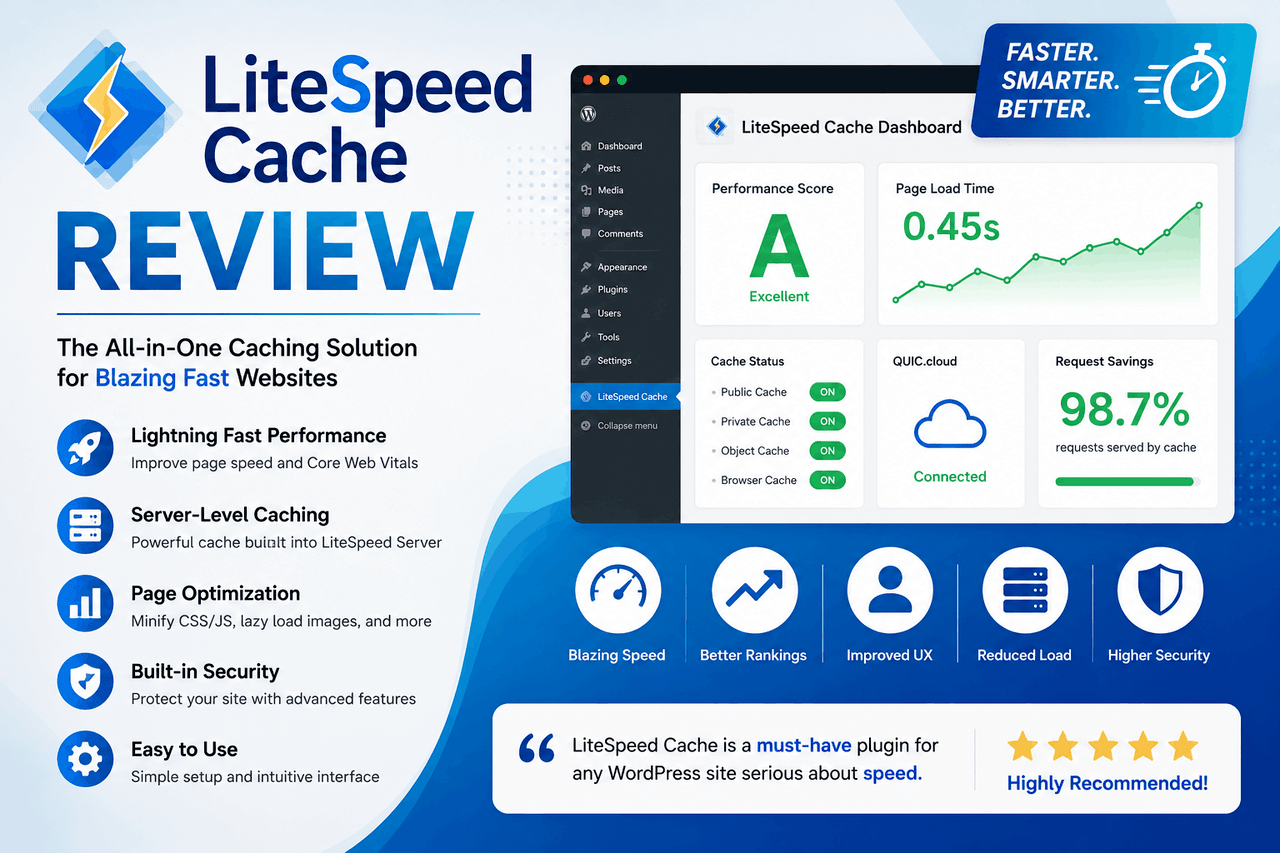
LiteSpeed Cache is a free WordPress caching plugin that improves site speed through server-level caching, image optimization, and database cleanup. It works best on LiteSpeed servers, where it delivers its full feature set. On other servers, you still get useful tools, but you’ll miss the fastest caching layer.
A slow website costs you, visitors. Google reports that as page load time goes from one to three seconds, the chance of a bounce rises by 32%. That means every extra second can quietly drain your traffic, your rankings, and your sales.
Caching is one of the simplest fixes. A caching plugin stores ready-made versions of your pages so your server doesn’t rebuild them from scratch on every visit. LiteSpeed Cache (often shortened to LSCache) is one of the most popular options, with over six million active installs on the WordPress plugin directory.
This review walks through what LiteSpeed Cache does, how to set it up, how it performs, and how it stacks up against the competition. By the end, you’ll know whether it’s the right fit for your WordPress site — and where it falls short.
What is LiteSpeed Cache, and why does it matter?
LiteSpeed Cache is a free, all-in-one performance plugin built by LiteSpeed Technologies. That means it bundles page caching, image optimization, code minification, and database cleanup into a single tool, so you don’t need a stack of separate plugins to speed up your site.
Here is the key detail. LiteSpeed Cache is designed to work hand-in-hand with LiteSpeed web servers (or compatible servers like OpenLiteSpeed). On those servers, it uses server-level caching, which is faster than the PHP-based caching most other plugins rely on.
So who is it for? If your host runs LiteSpeed servers, this plugin is close to a no-brainer. Many popular hosts — including Hostinger, NameHero, and many smaller providers — use LiteSpeed. If you’re on a non-LiteSpeed host, you can still install the plugin and use features like image optimization and minification, but the headline caching feature won’t be available. That’s the main trade-off to keep in mind.
The reward, when conditions are right, is significant. You get a faster site, better Core Web Vitals scores, and a smoother experience for visitors — all from a free plugin.
What are the key features and benefits of LiteSpeed Cache?
LiteSpeed Cache packs a lot into one plugin. Below are the features that matter most for everyday WordPress users.
Server-level page caching
This is the plugin’s standout feature. On LiteSpeed servers, page caching happens at the server level rather than through PHP. That means cached pages load faster and put less strain on your server, especially under heavy traffic.
The cache also handles dynamic content well. It supports separate caching for mobile users, logged-in users, and even WooCommerce carts, so your store keeps working correctly while still loading quickly.
Image optimization
LiteSpeed Cache compresses your images through its own server network, which keeps the work off your site. It can convert images to WebP, a modern format that’s smaller than JPEG or PNG without an obvious drop in quality. Smaller images mean faster pages.
The image optimization runs through LiteSpeed’s QUIC.cloud service. The free tier covers a generous monthly quota, which is plenty for most small sites. Larger sites with thousands of images may need a paid plan.
Database optimization
Over time, your WordPress database fills up with clutter — post revisions, spam comments, expired transients, and old drafts. LiteSpeed Cache cleans this up with a few clicks. A leaner database responds faster, which helps your whole site. That said, always back up your database before running a cleanup. Deletions can’t be undone.
Code minification and combination
The plugin can shrink your CSS, JavaScript, and HTML files by removing unnecessary spaces and characters. It can also defer or delay JavaScript loading, which improves how quickly your page becomes usable. These tweaks directly help your Core Web Vitals scores.
However, aggressive minification settings sometimes break site layouts or scripts. Test your site after enabling each option. More on troubleshooting below.
CDN integration with QUIC.cloud
LiteSpeed Cache connects to QUIC.cloud, a content delivery network built specifically for the plugin. A CDN stores copies of your site across servers worldwide, so visitors load your pages from a location near them. The free tier works well for small-to-medium sites and is one of the few free CDN options that integrates this tightly with a caching plugin.
How do you install and set up LiteSpeed Cache?
Installing LiteSpeed Cache takes only a few minutes. Here’s the step-by-step process.
Step 1: Install the plugin
- Log in to your WordPress dashboard.
- Go to Plugins → Add New.
- Search for “LiteSpeed Cache.”
- Click Install Now, then Activate.
Once active, you’ll see a new LiteSpeed Cache menu item in your sidebar.
Step 2: Enable caching
Go to LiteSpeed Cache → Cache and switch the main Enable Cache toggle to ON. If you’re on a LiteSpeed server, caching starts working right away. If you’re not, this toggle won’t have an effect, but the rest of the plugin still works.
Step 3: Connect to QUIC.cloud (optional but recommended)
To use image optimization and the CDN, you’ll need a free QUIC.cloud account. Go to LiteSpeed Cache → General and click Request Domain Key. Once approved, link your site to QUIC.cloud through the dashboard prompt.
Step 4: Run the preset configuration
LiteSpeed Cache offers one-click presets under LiteSpeed Cache → Cache → Presets. For most users, the Standard preset is a safe starting point. It enables sensible caching and optimization settings without the riskier options that can break pages.
Start conservative. You can always turn on more aggressive features later once you’ve confirmed your site works.
Step 5: Test your site
After setup, visit your site in a private browser window and click through your key pages. Check that everything loads and looks correct. Then run a speed test (covered next) to measure your gains.
What do the performance benchmarks show?
Real numbers tell the clearest story. While exact results depend on your host, theme, and content, independent tests consistently show strong improvements after enabling LiteSpeed Cache on a LiteSpeed server.
In typical before-and-after tests, sites measured with tools like GTmetrix and Google PageSpeed Insights often see:
- Page load times drop from around three to four seconds to under one second.
- Time to First Byte (TTFB) falls sharply, since cached pages skip PHP processing entirely.
- PageSpeed Insights scores climb into the 90s after enabling caching, image optimization, and minification together.
The biggest gains come from combining features. Caching alone speeds up delivery. Add image optimization and minification, and you cut page weight too. Together, they move the needle on Core Web Vitals — the metrics Google uses to judge page experience.
One honest caveat. If you’re not on a LiteSpeed server, your results will be more modest. You’ll still benefit from lighter images and minified code, but you won’t see the dramatic TTFB drop that server-level caching delivers.
How does LiteSpeed Cache compare to other caching plugins?
Caching plugins range from free all-in-one tools to premium-only options with polished interfaces. Here’s how LiteSpeed Cache stacks up against the best-known alternatives.
LiteSpeed Cache vs WP Rocket
WP Rocket is a premium plugin (no free version) known for its beginner-friendly setup. It works on any server and turns on smart defaults the moment you activate it.
Choose WP Rocket if you’re on a non-LiteSpeed host and want the simplest possible experience, and you don’t mind paying. Choose LiteSpeed Cache if you’re on a LiteSpeed server or want a powerful free option. On LiteSpeed servers, LSCache often matches or beats WP Rocket’s speed at no cost.
LiteSpeed Cache vs W3 Total Cache
W3 Total Cache is a long-standing free plugin with deep configuration options. But it’s also known for a steep learning curve and a settings panel that can overwhelm newcomers.
Choose W3 Total Cache if you want granular control and don’t mind the complexity. Choose LiteSpeed Cache if you want similar power with friendlier presets — and especially if you run a LiteSpeed server, where LSCache’s server-level caching has the edge.
LiteSpeed Cache vs WP Super Cache
WP Super Cache is a free, lightweight plugin from Automattic, the company behind WordPress.com. It’s simple and reliable but offers fewer features.
Choose WP Super Cache if you want bare-bones caching with minimal setup. Choose LiteSpeed Cache if you want image optimization, database cleanup, and a CDN bundled in — all still free.
The short version: on a LiteSpeed server, LiteSpeed Cache is hard to beat for the price. On other servers, WP Rocket may give you an easier ride if you’re willing to pay.
What are the best advanced configuration tips?
Once your site runs smoothly on the Standard preset, you can fine-tune for more speed. Apply these one at a time so you can spot any setting that causes trouble.
- Enable WebP image replacement. Under Image Optimization, turn on WebP delivery to serve smaller images to compatible browsers.
- Turn on CSS and JS minification. Start with minification before combination, since combining files is more likely to cause conflicts.
- Use “Load JS Deferred.” This stops scripts from blocking your page render and usually improves your Largest Contentful Paint score.
- Enable Object Cache (if your host supports Redis or Memcached). Object caching stores database query results, which speeds up dynamic and logged-in pages.
- Set up Crawler to keep your cache warm. The built-in crawler refreshes cached pages so visitors rarely hit an uncached page.
Each of these adds speed, but each also carries a small risk of conflict. Test after every change.
What are common LiteSpeed Cache problems, and how fix them?
No caching plugin is plug-and-play in every situation. Here are the issues you’re most likely to hit, and how to resolve them.
Problem: My site layout broke after enabling optimization.
This usually comes from combining or minifying CSS and JavaScript. Fix it by turning off CSS/JS combination first, then minification, until your layout returns. Re-enable them one at a time to find the culprit.
Problem: Caching doesn’t seem to work at all.
You’re probably on a non-LiteSpeed server. Page caching only works on LiteSpeed or OpenLiteSpeed servers. Check with your host, or focus on the image and code optimization features instead.
Problem: My changes aren’t showing up.
Your cache is serving an old version of the page. Go to LiteSpeed Cache → Toolbox → Purge All to clear it. The plugin usually purges automatically when you update content, but a manual purge fixes stubborn cases.
Problem: Image optimization is stuck or slow.
Image optimization runs through QUIC.cloud and can queue during busy periods. Wait a few hours, then check again. If you’ve hit your free monthly quota, you’ll need to wait for it to reset or upgrade your plan.
When in doubt, the safest move is to reset to the Standard preset and rebuild from there.
Should you use LiteSpeed Cache on your WordPress site?
LiteSpeed Cache delivers a lot for a free plugin. You get server-level page caching, image optimization, database cleanup, code minification, and a free CDN — all in one place. For sites running on LiteSpeed servers, it’s one of the strongest performance plugins available at any price.
The trade-off is clear. Its best feature, server-level caching, only works on LiteSpeed servers. If your host doesn’t run LiteSpeed, you’ll still gain from the optimization tools, but a plugin like WP Rocket may serve you better overall.
Here’s the simple decision. Check what server your host uses. If it’s LiteSpeed or OpenLiteSpeed, install LiteSpeed Cache, run the Standard preset, and enjoy a faster site for free. If it’s not, weigh the free optimization features against paid alternatives built for any server.
Either way, your next step is the same: run a speed test on your site today, install the plugin, and measure the difference for yourself.
Frequently asked questions
Is LiteSpeed Cache free?
Yes. LiteSpeed Cache is completely free to install and use. Some add-on services, like extra image optimization and CDN bandwidth through QUIC.cloud, have free tiers with monthly quotas. Heavy users can pay for higher limits, but most small sites never need to.
Does LiteSpeed Cache work without a LiteSpeed server?
Partly. The full-speed, server-level page caching only works on LiteSpeed or OpenLiteSpeed servers. On other servers, you can still use image optimization, code minification, database cleanup, and QUIC.cloud CDN — but not the core page cache.
How do I know if my host uses LiteSpeed?
Ask your host directly, or check your site’s HTTP response headers for a “Server: LiteSpeed” line. Popular LiteSpeed hosts include Hostinger and NameHero, among many others.
Is LiteSpeed Cache better than WP Rocket?
It depends on your server. On a LiteSpeed server, LiteSpeed Cache often matches or beats WP Rocket’s speed at no cost. On a non-LiteSpeed server, WP Rocket offers an easier setup and works anywhere — but you have to pay for it.
Can LiteSpeed Cache break my website?
It can, if you enable aggressive optimization settings like CSS/JS combination too quickly. To stay safe, start with the Standard preset, turn on advanced features one at a time, and test your site after each change. You can always purge the cache or reset to defaults if something goes wrong.
Will LiteSpeed Cache improve my Core Web Vitals?
Usually, yes. By caching pages, compressing images, and deferring JavaScript, the plugin targets the metrics Google uses to score page experience — including Largest Contentful Paint and Time to First Byte. The gains are largest on LiteSpeed servers.