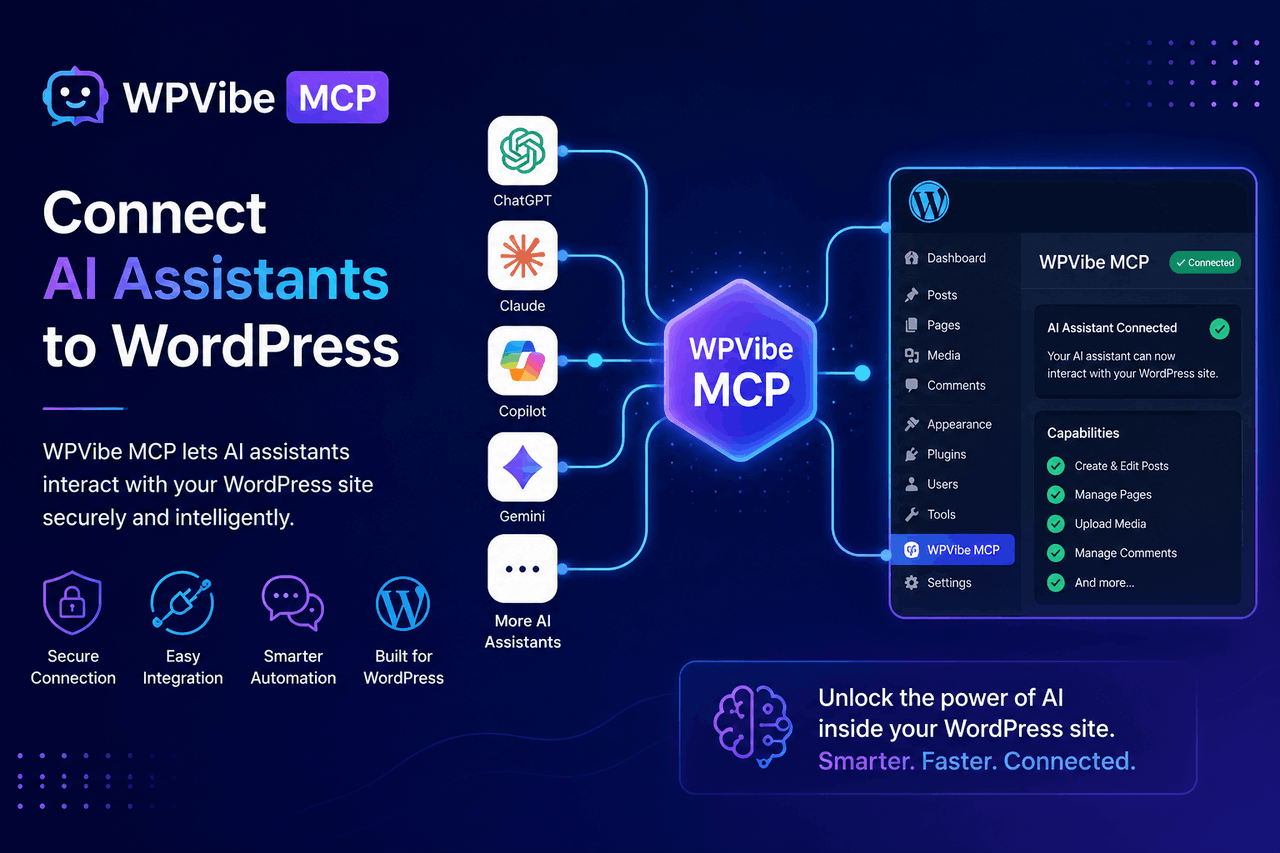
WPVibe MCP is a WordPress plugin that connects AI assistants — including Claude, ChatGPT, and others — directly to your WordPress site via the Model Context Protocol (MCP). It lets you create, edit, and manage content through natural conversation, without switching between tools. This post covers how it works, who benefits most, and how to get started.
Managing a WordPress site takes time. Writing posts, updating pages, formatting content, handling SEO — each task is straightforward on its own, but together they add up fast. AI assistants like Claude and ChatGPT can draft content quickly, but they’ve traditionally operated in isolation from your WordPress backend. You’d generate text in one place, then manually copy, paste, format, and publish it somewhere else.
WPVibe MCP changes that. It connects your AI assistant directly to your WordPress site, so the two systems can communicate. That means you can ask Claude to publish a blog post, tell ChatGPT to update a page title, or have your AI assistant pull existing content for editing — all through a conversation, without logging into your dashboard.
This post walks you through what WPVibe MCP does, who it’s built for, how to set it up, and where it fits compared to other AI integration tools for WordPress.
What Is WPVibe MCP, and Why Does It Matter?
WPVibe MCP is a WordPress plugin built on the Model Context Protocol (MCP), an open standard that allows AI assistants to interact with external tools and data sources. MCP acts as a structured communication layer — your AI assistant sends requests through it, and WPVibe MCP translates those requests into WordPress actions.
So when you ask Claude to “write a 600-word post about email marketing and schedule it for Friday,” WPVibe MCP receives that instruction, creates the post in WordPress, sets the publication date, and confirms the action — all without you opening your WordPress dashboard.
The significance here is practical. Most AI integrations for WordPress work one-way: you use AI to generate text, then you handle the publishing yourself. WPVibe MCP makes the connection bidirectional. Your AI assistant can read your existing content, write new content, update posts, and manage basic site functions — from within the conversation interface you’re already using.
How the AI Assistant Landscape Has Changed Content Creation
A few years ago, AI writing tools were largely standalone. You’d open a separate app, generate some copy, and bring it back to wherever you needed it. The workflow was disconnected by design.
That’s shifted considerably. Claude (developed by Anthropic), ChatGPT (developed by OpenAI), and similar AI assistants have evolved into conversational agents capable of using external tools, browsing the web, running code, and — with the right integrations — managing software platforms directly. The underlying mechanism that makes this possible is MCP, which provides AI assistants with a standardised way to connect to external systems.
For WordPress users, this evolution matters. WordPress powers over 43% of all websites on the internet (according to W3Techs, 2024). That’s a massive base of site owners, bloggers, marketers, and developers who stand to benefit if their AI assistant can work inside their CMS, not just beside it.
WPVibe MCP is built to close that gap.
What WPVibe MCP Actually Does: Core Features
Multi-AI Support Across Claude, ChatGPT, and Others
WPVibe MCP supports any AI assistant that implements the MCP standard. That currently includes Claude, ChatGPT (via compatible interfaces), and other tools adopting the protocol. You’re not locked into one AI provider, which matters if your team uses different tools or if your preferred assistant changes.
Direct Content Creation and Editing in WordPress
Through your AI assistant, you can create new posts and pages, edit existing content, update metadata, set categories and tags, manage featured images, and control publication status. These aren’t surface-level actions — the integration reaches into your WordPress content layer and executes changes directly.
Tasting notes for your content: contextual content reading
Your AI assistant can also read your existing WordPress content. That means you can ask it to summarise a post, rewrite a section based on existing copy, or identify gaps across your content library. The assistant isn’t working in the dark — it has access to what’s already on your site.
Structured Data Handling
WPVibe MCP passes structured information between your AI assistant and WordPress, reducing the risk of formatting errors or misplaced content. Posts come through with the right structure, not as raw text dumps that need manual cleanup.
How to Connect Your AI Assistant to WordPress Using WPVibe MCP
The setup process is straightforward, even if you haven’t worked with MCP tools before.
Step 1: Install the WPVibe MCP plugin. Download and install the plugin from the WordPress plugin directory or directly from WPVibe. Activate it from your WordPress dashboard.
Step 2: Generate your MCP connection credentials. Inside the plugin settings, you’ll find your MCP server URL and authentication details. These are unique to your site and act as the access point your AI assistant will use.
Step 3: Configure your AI assistant. In your AI assistant’s tool or integration settings (the exact location varies by platform), add WPVibe MCP as a connected tool using the credentials from Step 2. Claude users can add it through Claude’s tool configuration; ChatGPT users can connect it via a compatible MCP interface.
Step 4: Test the connection. Ask your AI assistant a simple question about your site — “What are the titles of my last five published posts?” — to confirm the connection is working. If it returns accurate results, you’re set.
Step 5: Start using it in your workflow. From here, you can issue natural language instructions to manage your WordPress content. Start with lower-stakes tasks (drafting a post, reading existing content) before moving on to publishing or bulk updates.
Who Benefits Most from WPVibe MCP?
Bloggers and Solo Content Creators
For bloggers managing everything themselves, WPVibe MCP reduces the friction between ideation and publication. You can draft a post through conversation, have your AI assistant format it, assign it to the right category, and schedule it — without touching your WordPress backend. That said, you’ll still want to review AI-generated content before it goes live. The tool speeds up the workflow; editorial judgment stays with you.
Marketing Teams
Marketing teams often manage high volumes of content across multiple campaigns. WPVibe MCP lets team members use whichever AI assistant they prefer, while all output flows into the same WordPress environment. It also makes content updates faster — if you need to revise a call to action across multiple posts, you can instruct your AI assistant to handle it directly.
Developers and Agencies
Developers building client sites can use WPVibe MCP to streamline content population during builds, automate repetitive content tasks, and give clients a lower-friction way to manage their own content. The multi-AI support means the tool fits into diverse client tech stacks without requiring everyone to use the same AI platform.
How to Get Better Results from AI-Generated WordPress Content
Connecting AI to WordPress is only half the equation. What comes out of that connection still needs to work for your readers and perform in search.
Be Specific in Your Instructions
Vague prompts produce vague content. Instead of asking your AI assistant to “write a blog post about productivity,” specify the audience, angle, word count, tone, and target keyword. The more context you provide, the closer the first draft will be to what you actually need.
Build a Review Step into Your Workflow
AI assistants generate content quickly, but they don’t have editorial judgment about your brand voice, accuracy, or audience fit. Build a review step into any workflow that ends in publication. Treat the AI output as a strong first draft, not a finished product.
Use Existing Content as Reference
Since WPVibe MCP gives your AI assistant access to your existing posts, you can use that to your advantage. Ask it to match the tone of a high-performing article, avoid topics you’ve already covered in depth, or build on a post that performed well. That’s something standalone AI writing tools can’t do.
Optimise After Generation
AI-generated content often needs SEO refinement. Check that your target keyword appears naturally in the headline, first paragraph, and key subheadings. Review meta titles and descriptions. Add internal links to relevant posts on your site. These steps don’t take long, but they matter for search performance.
How WPVibe MCP Compares to Other AI Integration Options for WordPress
Several tools offer AI integration for WordPress, but they vary significantly in how deeply they connect.
AI writing plugins (such as Bertha AI or Jasper’s WordPress integration) generate content inside the WordPress editor but typically don’t support external AI assistants. You’re tied to one AI engine, and the interaction happens within WordPress rather than through a conversational interface.
Zapier or Make automations can connect AI tools to WordPress through triggers and actions, but they require predefined workflows. They handle structured, repetitive tasks well — but they don’t support open-ended, conversational instructions as well as MCP does.
WPVibe MCP sits in a different category. It supports multiple AI assistants, allows open-ended natural-language control, and grants your AI assistant read access to your existing content. The trade-off is that it requires a slightly more technical setup than a traditional plugin, and the range of AI assistants that support MCP is still growing.
Choose WPVibe MCP if you already use Claude, ChatGPT, or another MCP-compatible assistant and want those tools to work directly inside your WordPress environment. Stick with a simpler plugin if you want a self-contained writing assistant with minimal configuration.
What’s Next for AI and WordPress Content Management?
The Model Context Protocol is relatively new, but adoption is accelerating. As more AI assistants support MCP natively, tools like WPVibe MCP will become more capable and more widely compatible. The direction is toward AI assistants that don’t just generate content in isolation, but operate inside the tools you already use — your CMS, your analytics platform, your project management software.
For WordPress users, this shift means the gap between “thinking about content” and “publishing content” will continue to narrow. The sites that will benefit most are those that build good editorial processes now — clear guidelines, consistent review steps, and thoughtful content strategy — so that as AI assistants become more capable, the human judgment layer stays strong.
Is WPVibe MCP Worth Adding to Your WordPress Workflow?
If you use an AI assistant regularly and manage a WordPress site, WPVibe MCP removes a friction point that’s easy to underestimate until it’s gone. The copy-paste loop between your AI tool and your CMS adds time to every piece of content you produce. Over weeks and months, that adds up.
The plugin works best when you’re already comfortable with AI assistants and have a clear sense of your content workflow. It won’t replace editorial judgment, and it won’t make weak content strategies stronger. But for teams and individuals who produce content consistently, it’s a practical way to reduce manual steps and keep your focus on the work that actually requires human thinking.
Start with the plugin documentation, connect one AI assistant, and run through a few low-stakes tasks. You’ll have a clear sense within an hour whether it fits your workflow.
Frequently asked questions
What does MCP stand for?
MCP stands for Model Context Protocol. It’s an open standard introduced by Anthropic in late 2024 that defines how AI assistants connect to external data sources and tools, including WordPress sites.
Which AI assistants work with WPVibe MCP?
WPVibe MCP works with any AI tool that supports the Model Context Protocol. That includes Claude, ChatGPT, and Cursor. Because MCP is an open standard, you can switch between assistants without having to rebuild the connection.
Is it safe to connect an AI assistant to my WordPress site?
It can be safe with the right setup. Start with read-only or draft-only access, test on a staging site, keep recent backups, and review the AI’s changes before fully trusting it. These habits keep the risk low while you learn how the assistant behaves.
Do I need to be a developer to use WPVibe MCP?
Not necessarily. Developers will find it easiest to set up, but content managers and site owners can use it too once it’s connected. The day-to-day use is just plain conversation with your AI assistant.
How is MCP different from a regular plugin or API?
A regular API or plugin connects two services in a fixed way. MCP is a shared standard, so a single MCP server like WPVibe MCP works with many different AI assistants. Build or install once, and any MCP-compatible tool can use it.
What can WPVibe MCP actually do on my site?
WPVibe MCP lets your AI assistant manage posts and pages, organise media, adjust site settings, and query data about your content, users, and plugins. The exact actions are limited to what the server exposes, so you stay in control of what the AI can touch.
What AI assistants does WPVibe MCP support?
WPVibe MCP supports any AI assistant that implements the Model Context Protocol (MCP) standard. This currently includes Claude (Anthropic) and ChatGPT (OpenAI) via MCP-compatible interfaces, with broader support expected as the protocol is adopted more widely.
Do I need coding experience to set up WPVibe MCP?
No. The setup involves installing a WordPress plugin, copying connection credentials, and configuring your AI assistant’s tool settings. Most users can complete this without technical assistance. Developers may find additional value in the plugin’s more advanced configuration options.
Can WPVibe MCP publish content automatically without human review?
Technically, yes — your AI assistant can publish posts directly. Whether you should automate publishing without review depends on your quality standards and content type. For most use cases, building a review step before final publication is worth the few extra minutes.
Is WPVibe MCP compatible with page builders like Elementor or Divi?
WPVibe MCP works with WordPress’s content layer. Compatibility with specific page builders depends on how those builders store content in the database. Standard WordPress posts and pages work reliably; complex custom layouts built with page builders may require additional configuration.
What happens to my content if I deactivate the plugin?
Deactivating WPVibe MCP disconnects your AI assistant from WordPress. Content already published to your site remains unaffected. Your AI assistant simply loses the ability to interact with your site until the plugin is reactivated.
How does WPVibe MCP handle site security?
The plugin uses authentication credentials to control access. Only AI assistants with valid credentials can interact with your site. As with any tool that connects external services to your WordPress installation, it’s worth reviewing the plugin’s permission settings and keeping it up to date alongside your other plugins.