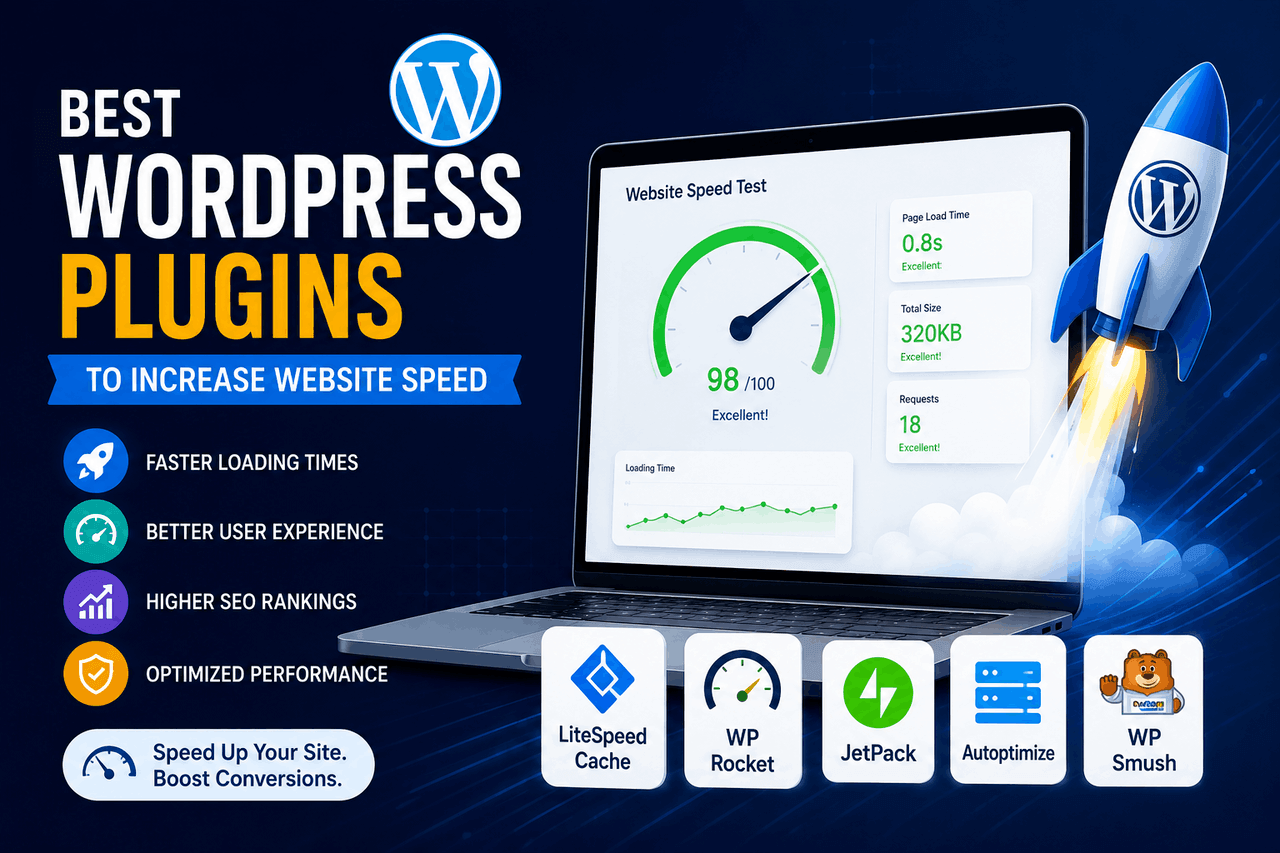
To speed up a WordPress website, use a fast hosting provider and the right speed plugins for specific tasks. A strong setup typically includes a caching plugin, an image compression tool, and a database cleaner to reduce page load times and improve your Core Web Vitals.
A slow website is like a store with a jammed front door. People might wait a second or two, but if they have to push too hard, they will simply leave and go to the competitor next door.
In the digital world, speed is the foundation of user experience. Google and other search engines know this, which is why they actively reward fast websites with higher search rankings and penalize slow ones. You can have the most compelling content or the best products on the market, but if your pages take longer than three seconds to load, you are losing as much as 50% of your potential traffic.
Speeding up a WordPress site involves a mix of server-level choices and software configurations. While you cannot fix a terrible hosting provider with software alone, the right WordPress plugins can still drastically reduce your load times.
This guide breaks down what causes your site to lag, how to fix the foundation, and which WordPress speed plugins you should install to keep your site running fast.
Why does your website’s speed actually matter?
Website speed matters because human patience is remarkably short. A delay of just one second can reduce your conversion rate by 7%.
Beyond human patience, speed also shapes your search engine visibility. Google uses a set of specific metrics called Core Web Vitals to measure how users experience your page’s speed, responsiveness, and visual stability. These metrics look at how fast the largest piece of content loads, how quickly the page responds to a user’s first click, and whether elements jump around the screen as they load. If your site fails these tests, your search engine rankings will drop.
What are the common causes of slow WordPress websites?
Before you install any new software, you need to understand what is slowing you down. WordPress sites usually drag for a few specific reasons.
Large image files are the most common offenders. Uploading a 5-megabyte photograph straight from your camera to your homepage forces every visitor to download that massive file before they can read your text.
Excessive plugins and heavy themes also create drag. Every plugin you add requires the server to process more code and make more database requests. If you use a bloated theme packed with features you never use, your server has to load those unnecessary scripts for every single visitor.
Poor hosting is the silent killer of site speed. If you pay $3 a month for shared hosting, your site sits on a server with hundreds of other websites. When one of those sites gets a traffic spike, your site slows to a crawl.
Finally, a lack of caching forces your server to rebuild every single page from scratch every time a user requests it. This is like cooking a new meal from raw ingredients every time a customer orders, rather than prepping the components in advance.
What are the essential speed techniques you should use before adding plugins?
Software cannot fix bad infrastructure. You need to address your foundation before you install speed plugins.
Choose a reliable, performance-focused host. Managed WordPress hosting usually costs around $20 to $30 a month, but it provides dedicated resources and server-level caching that cheap shared hosting cannot match.
Use a lightweight theme. Themes like GeneratePress or Astra load in less than half a second out of the box because they do not rely on heavy code libraries like jQuery.
Format your images before uploading them. Resize your images to the exact dimensions you need. There is no reason to upload a 4000-pixel-wide image if your blog content area is only 800 pixels wide.
What are the best WordPress plugins to increase website speed?
Once your foundation is solid, use plugins to handle the heavy lifting. You do not need a plugin from every category below. Installing too many speed plugins often causes conflicts, so choose one good tool for each specific job.
Which caching plugins are the best?
Caching plugins create a static HTML version of your dynamic WordPress pages. When a visitor arrives, the server hands them the ready-made static page instead of querying the database and generating the page on the fly.
WP Rocket
WP Rocket is a premium plugin that handles caching, file minification, and lazy loading in one interface. LiteSpeed Cache is a free alternative with strong performance, but it only works to its full potential if your host uses a LiteSpeed server. W3 Total Cache is a highly granular, free plugin for developers who want control over caching settings.
Who are they good for?
WP Rocket is ideal for beginners and business owners who want a set-it-and-forget-it solution. LiteSpeed Cache is best for users on LiteSpeed servers who want premium performance for free. W3 Total Cache is for developers who understand page caching, object caching, and database caching.
Risks
Caching plugins can sometimes break the visual layout of your site if they compress JavaScript or CSS files incorrectly. You will need to test your site carefully after activating these features.
Rewards
A good caching plugin is the single most effective software change you can make. It can cut your load time in half instantly.
Which image compression plugins should you use?
Image compression plugins automatically reduce the file size of the pictures you upload without making them look blurry to the human eye.
Smush
Smush is a popular free plugin that automatically strips hidden data from your images and compresses them as you upload. Imagify is built by the same team as WP Rocket and is strong for converting JPEG and PNG files into WebP format, a modern, much smaller file type. EWWW Image Optimizer compresses images directly on your own server instead of sending them to a third-party server.
Who are they good for?
Smush is great for casual bloggers. Imagify is best for businesses that want an automated way to serve modern WebP images. EWWW is for privacy-conscious sites that want to keep all data processing on their own servers.
Risks
If you choose a highly aggressive compression setting, your images might look pixelated. Some free versions of these plugins also limit how many images you can compress per month.
Rewards
Compressing images saves massive amounts of bandwidth. Your pages load faster, and mobile users will not abandon your site while waiting for pictures to appear.
How do lazy-loading plugins help?
Lazy loading changes how your site delivers media. Instead of loading every image on a long page all at once, the site only loads the images that are currently visible on the user’s screen. As the user scrolls down, the other images load just before they come into view.
WP Rocket
WordPress now includes basic lazy loading by default, but plugins like a3 Lazy Load offer more control. WP Rocket also includes an excellent lazy loading feature built right in.
Who are they good for?
Lazy loading is essential for photography portfolios, long blog posts, and WooCommerce product pages.
Risks
Sometimes, lazy loading can cause images to pop into place suddenly if the user scrolls very fast.
Rewards
The initial page load time drops dramatically because the server only has to fetch the content at the very top of the page.
Which plugins clean up your database?
Your WordPress database is like a filing cabinet. Over time, it fills up with post revisions, spam comments, and leftover data from plugins you deleted months ago.
WP-Optimize
WP-Optimize is a dedicated tool that safely cleans out this junk data. It removes transient options, clears out trashed comments, and defragments the database tables so they run smoothly.
Who are they good for?
This is necessary for older websites that have undergone many design changes or published hundreds of articles.
Risks
Messing with your database is inherently risky. If a process goes wrong, you could lose data. You must always run a full backup of your site before running a database optimization plugin.
Rewards
A clean database means WordPress can find the information it needs faster, reducing the time it takes for your server to respond to requests.
Which plugins help you integrate a CDN?
A Content Delivery Network (CDN) is a global network of servers. Instead of forcing a user in Australia to download your website from a server in New York, a CDN stores a copy of your site on a server in Sydney and delivers it from there.
Cloudflare
Cloudflare is the most popular free CDN and security service. While you manage Cloudflare at the DNS level, the WordPress plugin can help manage cache. StackPath is a premium CDN known for high performance and security.
Who are they good for?
A CDN is necessary for any website that has an international audience.
Risks
Setting up a CDN requires changing your domain’s nameservers, which can take your site offline temporarily if done incorrectly.
Rewards
A CDN drastically reduces the physical distance data has to travel, speeding up your site for users across the globe while protecting your server from malicious traffic.
How do code minification plugins work?
Your theme and plugins use CSS and JavaScript to dictate how your site looks and behaves. These files are often full of spaces, line breaks, and comments meant for human developers. Minification removes all that space, making the files lighter.
Autoptimize
Autoptimize is a free plugin that specializes in minifying and combining scripts and styles. Asset CleanUp takes a different approach — it lets you selectively disable specific scripts from loading on pages where they are not needed. For instance, it stops a contact form script from loading on your homepage.
Who are they good for?
These tools are for users who want to pass the strict Core Web Vitals tests by eliminating render-blocking resources.
Risks
Combining and modifying JavaScript files frequently breaks site functionality. Sliders might stop sliding, and mobile menus might stop opening. You have to test these settings one by one.
Rewards
Minifying code shaves milliseconds off your load time and satisfies search engine algorithms.
What are the advanced speed strategies you should consider?
Once your plugins are set up, you can look at server-level improvements.
Server-side compression, like Gzip or Brotli, shrinks your website files before they leave the server. The user’s browser then unzips them. Most good caching plugins can enable this, but you can also activate it directly via your hosting panel.
Generating Critical CSS is another advanced tactic. This involves identifying the exact CSS needed to style the top portion of your website and loading it inline, while deferring the rest of the styling until later. Premium tools like WP Rocket handle this automatically, saving you hours of manual coding.
How do you actually measure your website speed?
You cannot improve what you do not measure. Do not rely on how fast the site feels on your own computer, because your browser has already cached it.
Google PageSpeed Insights is the official tool for checking your Core Web Vitals. It shows you exactly what Google sees and provides a score out of 100 for both mobile and desktop.
GTmetrix is an excellent tool that provides a visual waterfall chart. This chart shows you exactly which files are loading in what order, making it easy to spot a single slow plugin that is holding up the rest of the page.
Pingdom Tools is great for testing your site’s load time from different geographical locations.
How do you maintain optimal speed over time?
A fast website requires regular maintenance. It is not a one-time project.
Set up regular monitoring using a tool like GTmetrix to send you an alert if your load time suddenly spikes.
Keep your plugins, themes, and WordPress core updated. Developers frequently release updates that patch security holes and improve code performance.
Finally, conduct regular content and plugin audits. If you have not used a plugin in three months, delete it. If you have old images taking up space, remove them. Keep your environment clean to keep it fast.
Taking control of your website performance
Speeding up your WordPress site is a process of removing unnecessary weight and serving the remaining content as efficiently as possible. You need a fast web host, a reliable caching plugin like WP Rocket or LiteSpeed Cache, and a solid image compression tool like Smush or Imagify.
Take a baseline measurement of your site today using Google PageSpeed Insights. Install a caching plugin, run the test again, and watch your scores improve. The faster your site runs, the more traffic you will retain and the better your business will perform.
Frequently Asked Questions
How much does it cost to speed up a WordPress site?
You can speed up a WordPress site for free using tools like LiteSpeed Cache, Smush, and Cloudflare. If you want a more automated, premium experience, tools like WP Rocket cost around $59 per year, while premium managed hosting usually starts at $20 per month.
Can I use multiple caching plugins at the same time?
No. You should never use multiple caching plugins simultaneously. They will conflict with each other, cause severe errors, and actually slow your site down or break your layout entirely. Pick one caching plugin and stick with it.
Why is my WordPress site still slow after installing speed plugins?
If you have configured your caching and image compression plugins correctly and your site is still slow, the problem is almost certainly your web host. Cheap shared hosting environments do not provide enough server resources to run a fast, modern website, regardless of what software you add.
Is WP Rocket better than free caching plugins?
WP Rocket is generally easier to use than free alternatives because it applies the best practices automatically upon activation. Choose WP Rocket if you value your time and want a simple interface. Choose a free option like W3 Total Cache if you have the technical knowledge to configure complex settings yourself.