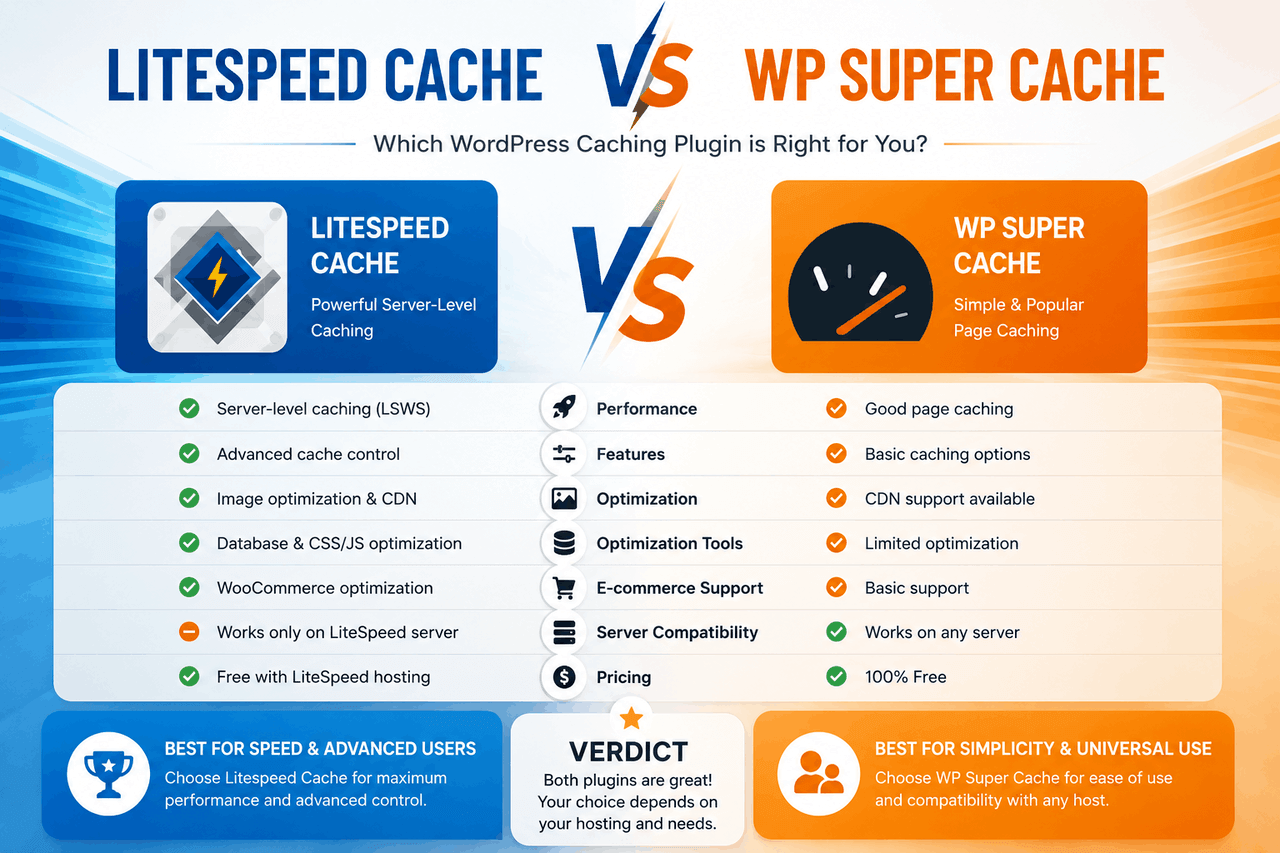
Both plugins improve WordPress loading times by storing static copies of your web pages. Choose LiteSpeed Cache if your website runs on a LiteSpeed web server and you want advanced built-in features, such as image compression. Choose WP Super Cache if your host uses Apache or Nginx servers and you need a simple, beginner-friendly setup. In short, LiteSpeed Cache suits users with LiteSpeed hosting who want more control, while WP Super Cache suits users who want a simpler option.
Caching stores a static HTML copy of your WordPress website. When a visitor clicks on your site, your server delivers this static copy instead of running heavy PHP scripts and database queries. That means your server does less work, and your readers see your content almost immediately. Speed is a primary ranking factor for search engines, so finding the right caching solution directly impacts your website traffic.
From basic file-generation tools to complex server-level integrations, there is a caching option for every skill level. Two of the most popular options available today are LiteSpeed Cache and WP Super Cache. Both plugins effectively reduce page load times, but they take very different approaches to managing your website’s data.
This guide compares the LiteSpeed Cache plugin and WP Super Cache. You will learn how each tool functions, what server requirements it demands, and which caching plugin best fits your specific hosting environment and technical expertise.
What makes the LiteSpeed Cache plugin unique?
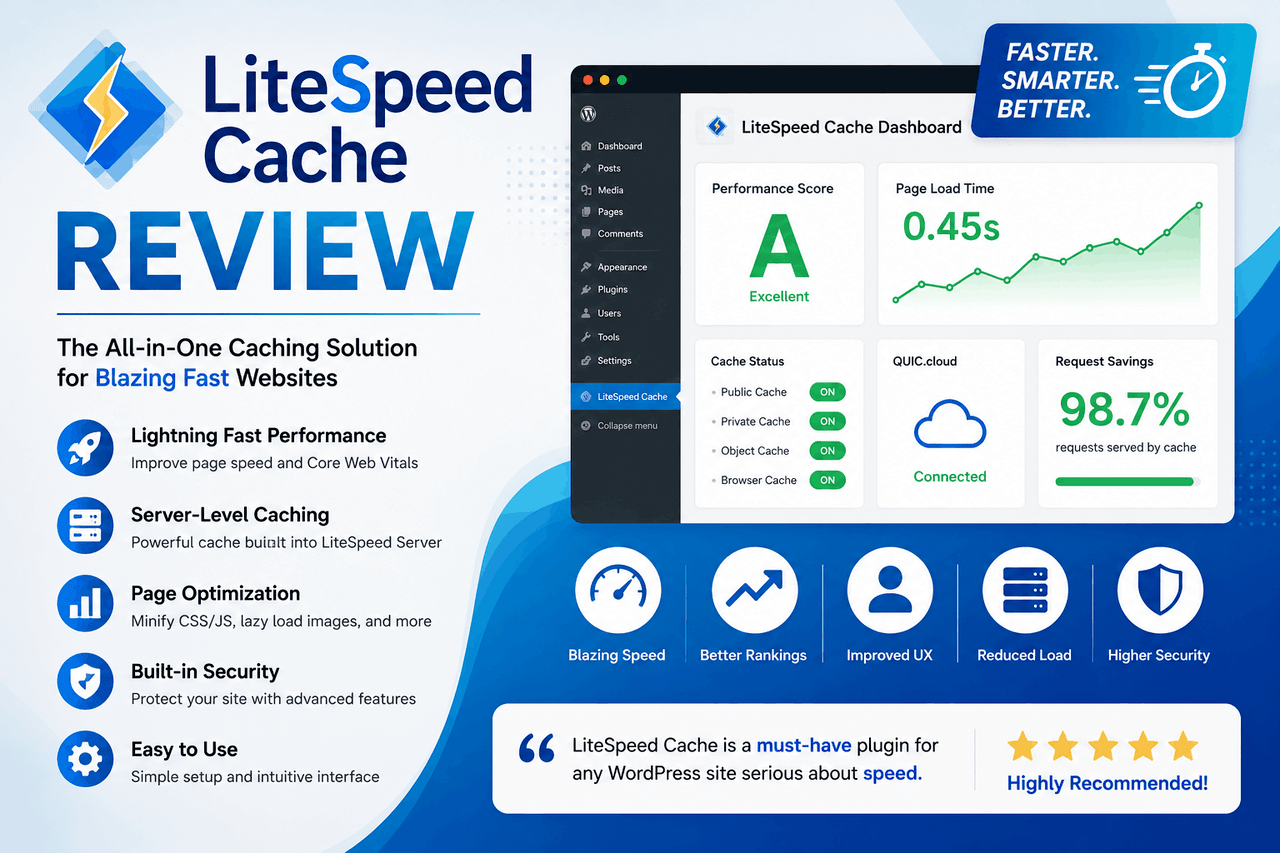
LiteSpeed Cache is an all-in-one site acceleration plugin. It communicates directly with your web server to store static pages, rather than relying strictly on PHP to manage the cache. That server-level integration allows it to bypass standard WordPress processing entirely, resulting in incredibly fast response times.
The LiteSpeed Cache plugin is built for website owners who want comprehensive control over their site speed. It includes minification of CSS and JavaScript, lazy loading of images, and database cleanup tools. You get an entire suite of performance features in one dashboard. That means you can reduce the number of active plugins on your website, which lowers your risk of software conflicts.
However, these extensive features come with a catch. To get the server-level page caching benefits, your web host must run on a LiteSpeed web server. If your host uses Apache or Nginx, the plugin will still perform basic code minification and image compression, but the core page caching feature will not function. Furthermore, the sheer number of LiteSpeed Cache settings can confuse beginners. Misconfiguring these settings can break your website’s layout.
Despite the complex setup, the rewards are significant for those in the right hosting environment. Users who configure the plugin correctly typically see lower server resource usage and faster time-to-first-byte (TTFB) metrics. You can download the latest version of the LiteSpeed cache directly from the WordPress repository to test its compatibility with your host.
How does WP Super Cache handle website speed?
WP Super Cache takes a simpler, highly compatible approach to website speed. Developed by Automattic—the company behind WordPress.com—this plugin generates static HTML files from your dynamic WordPress blog. After it generates the file, your web server serves it to visitors instead of running the heavier PHP scripts.
WP Super Cache is an excellent choice for beginners and those on shared hosting plans. It works across almost all server environments, including Apache and Nginx. The plugin offers a “Simple” caching mode that requires only one checkbox to activate. That makes it incredibly easy to set up, even if you have no technical background.
That said, WP Super Cache has fewer features than its competitors. It strictly focuses on page caching. It does not include built-in image compression, database cleaning, or CSS minification. If you want those features, you must install additional plugins, which increase the management burden on your site. Additionally, its file-based caching is generally slower than LiteSpeed’s server-level caching.
WP Super Cache provides a safe, reliable way to speed up a basic blog or portfolio. It handles high-traffic spikes well by serving simple static files, keeping your site online even when a post goes viral.
How do LiteSpeed Cache and WP Super Cache compare head-to-head?
When choosing a WordPress caching plugin, you must evaluate how each tool aligns with your specific hosting infrastructure. The comparison below breaks down their core components.
Performance benchmarks and speed capabilities
According to internal testing by LiteSpeed Technologies [LiteSpeed, 2023], server-level caching outperforms PHP-based caching in requests per second. The LiteSpeed Cache plugin processes requests before WordPress even loads. This leads to superior performance, especially for highly dynamic sites like WooCommerce stores. In some configurations, WP Super Cache relies on PHP to serve its cached files, which adds slight overhead. WP Super Cache performs admirably for static content, but LiteSpeed wins out in pure performance on compatible servers.
Ease of installation and configuration
WP Super Cache wins easily in usability. You install the plugin, toggle the caching setting to “On,” and your site speeds up immediately. The LiteSpeed Cache plugin requires significantly more effort. The LiteSpeed Cache settings menu includes dozens of tabs for tweaking CSS, JavaScript, database pruning, and Content Delivery Network (CDN) mapping. While LiteSpeed offers basic presets, you still need technical knowledge to ensure you do not break your site’s styling.
Feature set and optimisation tools
WP Super Cache does one thing: it caches pages. The LiteSpeed Cache plugin is a full performance suite. LiteSpeed includes image optimisation, database cleaning, object caching, and QUIC integration. Cloud CDN. If you use WP Super Cache, you will need separate plugins like Smush for images or Autoptimize for code minification to match LiteSpeed’s feature set.
Server compatibility requirements
This is the primary dividing line. WP Super Cache works on virtually any hosting environment. You can install it on Apache, Nginx, or custom setups without issue. The LiteSpeed Cache plugin requires a LiteSpeed web server to use its core page caching feature. If your host does not use LiteSpeed, you miss out on the plugin’s main benefit.
What factors should you consider when choosing a caching plugin?
Your decision between these two plugins depends heavily on your current resources. Before installing either tool, consider the following factors.
Your hosting environment: Check with your hosting provider to see what server software they use. Choose the LiteSpeed Cache plugin if your host uses LiteSpeed servers. Choose WP Super Cache if your host uses Apache or Nginx servers.
Your technical expertise: If you want a “set it and forget it” solution, WP Super Cache is the safer choice. If you are comfortable testing different configuration toggles to squeeze every millisecond of speed out of your site, LiteSpeed offers the control you need.
Your website type: E-commerce stores and membership sites generate dynamic content that is difficult to cache. LiteSpeed handles dynamic content better through its advanced Edge Side Includes (ESI) features. Simple blogs and portfolio sites do perfectly fine with WP Super Cache.
You might be wondering about the price of LiteSpeed Cache. The plugin itself is free. However, your web host pays a license fee to run LiteSpeed Enterprise servers, which they may pass on to you in your hosting costs. There is no paid “LiteSpeed Cache Pro” version of the plugin; all features are included for free. WP Super Cache is also entirely free. In short, choose LiteSpeed Cache for advanced features on LiteSpeed servers, and choose WP Super Cache for a simple free option on Apache or Nginx.
How do you install and configure these caching plugins?
Setting up your caching plugin correctly ensures your visitors get a fast, error-free experience. Follow the steps below to get started with both options.
Step-by-step guide for LiteSpeed Cache
- Navigate to your WordPress dashboard, click Plugins, and select Add New.
- Search for the LiteSpeed Cache plugin and click Install Now, then Activate.
- Go to the new LiteSpeed Cache menu in your sidebar and select Presets.
- Apply the “Basic” or “Advanced” preset depending on your comfort level.
- Navigate to the Cache settings tab and ensure “Enable Cache” is toggled to ON.
- Test your website in an incognito window to ensure images and styling load correctly.
Step-by-step guide for WP Super Cache
- Navigate to your WordPress dashboard, click Plugins, and select Add New.
- Search for WP Super Cache and click Install Now, then Activate.
- Go to Settings, then click WP Super Cache.
- Under the Easy tab, select the radio button for “Caching On (Recommended).”
- Click Update Status.
- Scroll down and click the Test Cache button to verify the plugin is generating static pages.
What are some advanced tips for maximising caching performance?
Installing a caching plugin is only the first step in speeding up your website. To deliver content even faster, combine your plugin with other server-level technologies.
First, implement a Content Delivery Network (CDN). A CDN stores copies of your images and scripts on servers around the world. When a user visits your site, the CDN serves the files from the location closest to them, drastically reducing physical latency. Both LiteSpeed Cache and WP Super Cache offer settings to easily link your CDN to your WordPress installation.
Second, ensure GZIP or Brotli compression is active on your server. Compression shrinks the size of your HTML, CSS, and JavaScript files before they travel over the internet to the visitor’s browser. Smaller files move faster.
Finally, maintain a lean database. Every time you revise a post or delete a spam comment, WordPress saves that data. Over time, your database becomes bloated, slowing down the time it takes to find information. LiteSpeed Cache includes a database cleaning tab to remove old revisions. If you use WP Super Cache, you can install a free plugin like WP-Optimize to perform the same cleanup tasks.
Making your final caching plugin decision
Website speed dictates how long visitors stay on your pages and how high search engines rank your content. From complex server-level integrations to simple static file generation, selecting the right tool makes managing that speed much easier.
LiteSpeed Cache provides unmatched performance and a massive feature set for users hosted on LiteSpeed servers. It replaces the need for half a dozen other performance plugins. WP Super Cache offers universal compatibility and a foolproof setup process for users on standard Apache or Nginx hosting.
Check your server environment today. If you have LiteSpeed, install the LiteSpeed Cache plugin and apply the basic preset to see immediate gains. If you have Apache or Nginx, install WP Super Cache and enable caching. Taking 10 minutes to configure either tool will yield a faster, more reliable website.
Frequently Asked Questions (FAQ)
Is LiteSpeed Cache free to use?
Yes, the LiteSpeed Cache plugin is free and open source. No premium LiteSpeed Cache Pro version restricts features. However, to use its core page caching capabilities, your website must be hosted on a LiteSpeed web server. Your hosting provider may charge higher monthly rates for LiteSpeed server environments compared to standard Apache hosting.
Can I use LiteSpeed Cache on an Apache server?
You can install the LiteSpeed Cache plugin on an Apache or Nginx server, but the primary page-caching features will not work. You will only be able to use its secondary optimisation features, such as image compression, database cleaning, and CSS/JavaScript minification. If you are on an Apache server, you typically get better page caching results using WP Super Cache.
Will WP Super Cache break my website layout?
WP Super Cache rarely breaks website layouts because it relies on simple file-based caching and does not modify your CSS or JavaScript. Layout breaks usually occur when a caching plugin aggressively minifies or combines code files. Since WP Super Cache does not include built-in code minification, it is generally very safe for beginners to install and activate.
How often should I clear my WordPress cache?
You should clear your WordPress cache whenever you make significant changes to your website’s design, add new plugins, or update your theme. Both LiteSpeed Cache and WP Super Cache automatically clear the cache for specific pages when you publish or update a blog post. That means you do not need to manually clear the entire cache for routine daily publishing.
Does WP Super Cache optimise images?
No, WP Super Cache does not optimise or compress images. It strictly handles the generation and serving of static HTML pages. If you use WP Super Cache and want to improve your image loading times, you must install a separate image optimisation plugin, such as Smush or ShortPixel, to handle file compression and lazy loading.